
Licensing#
License Activation and Certification#
Download easyDCP Creator+ at www.easydcp.com.
Offline workflow#
After installing and starting easyDCP Creator+ the following dialog appears:
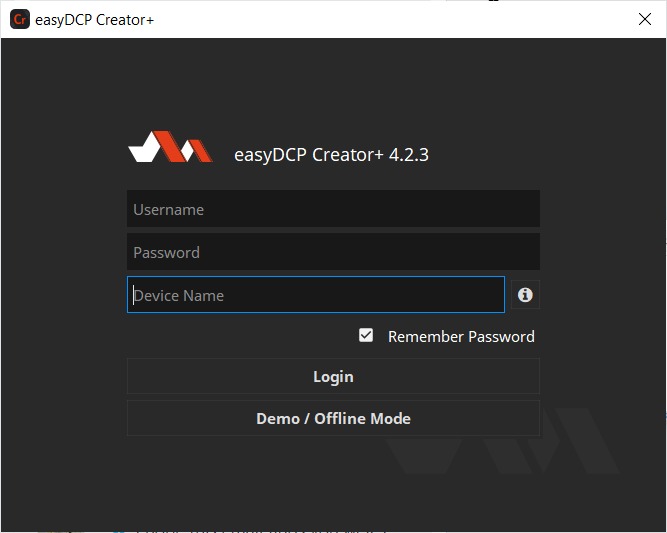
Click “Demo / Offline Mode” to start a free version of easyDCP Creator which is subjected to the demo mode restrictions. After startup has finished, open the options dialog, select “Activation Status” and press “Request License & Certificate”. Fill in the licensee’s name, the URL that shall be stated in the custom server certificates and a password that is used to protect access to the certificates. If the computer is connected to the Internet, click the “submit” button. The default web-browser will open www.easydcp.com , where further instructions will guide you through the purchase process.
After the purchase, a link to the zip file with the License & Certificate will be available for download within your user account at www.easydcp.com. The zip file can be dragged & dropped into easyDCP Player+ installation to unlock it.
The procedure is also described in a screen cast at www.easydcp.com.
Please be aware that this workflow only works with permanent licenses. For subscriptions, you have to follow the Online workflow.
Online workflow#
Purchase one of the available subscription plans at www.easydcp.com. After the purchase, a license and the necessary certificate for easyDCP Creator+ is linked to your easyDCP account.
Install and start easyDCP Creator+ and fill in the username and password you’ve used for your easyDCP account. After clicking “Login”, easyDCP Creator+ will automatically download the linked license and certificate from www.easydcp.com and activate your instance.
The “Device Name” field is prefilled with the name of the machine you use easyDCP Creator on. You can change the name freely. The name will be send to easyDCP.com and is used for convenient device identification only.
Please be aware that a permanent internet connection is required. As soon as easyDCP Creator+ detects a connection loss, the graphical user interface will be locked until the internet connection has been re-established.
With the online licensing workflow it’s possible to run easyDCP Creator+ on different systems with the same license. Please be aware that multiple subscriptions are necessary to run easyDCP Creator+ instances at the same time on different machines.
Please be aware that for each computer a server certificate will be generated. Example: If you login on system 1 and afterwards on system 2, there will be two server certificates linked to your easyDCP account.
View current license status#
To view the license details with an offline license, go to “menu bar -> File -> Settings -> Activation Status” and select Details next to the “Licensee” entry
Application Data and Settings#
easyDCP Creator automatically creates an application data folder. It contains the settings file as well as a folder where the server certificates are stored and a repository for color transform files.
The folder is located at
<User Application Data>/Fraunhofer IIS/easyDCP Creator+/
Additionally, all easyDCP applications share a folder with additional files such as color space descriptions. It is located at
<User Application Data>/Fraunhofer IIS/easyDCP Shared/
The user application data folder on Windows is located in
C:/Documents and Settings/<username>/Application Data/
A shortcut is to just enter %APPDATA% into the address bar. On Mac OS X, the user application data folder is at
/Users/<username>/Library/Application Support/
Software Update#
Please make sure you leave the automatic check-for-updates enabled, so that you get informed immediately when new versions are available for download.
Multiple versions of easyDCP Creator can be installed side-by-side, so there is no need to uninstall the old version before installing a new one.
With an active subscription it is possible to just login in the new version without further action required.
A new license file is only required for major updates, e.g. version 4.1 to version 4.2, and can be purchased at www.easydcp.com. Point releases do not require a new license, e.g. 4.2.2 to 4.2.3.
The update procedure is as follows
Point Release (only the last version number changes, e.g. 4.2.2 to 4.2.3)
Log into your account at www.easydcp.com
Download the new installer file and install it
Offline licensing workflow: The new easyDCP Creator+ version will automatically detect your existing license file and is good to go.
Online licensing workflow: easyDCP Creator+ will automatically download the necessary license and certificate information from www.easydcp.com as described in Online workflow. There is nothing else you have to do.
Major Release (first or second version number changes, e.g. 4.1.x to 4.2.x)
Offline licensing workflow
Log into your account at www.easydcp.com and purchase the license for the new version. The installer is then available for download. Download and install it.
Open the new easyDCP Creator+ version and proceed with the steps described in Offline workflow
If you have already used easyDCP Creator+ before, you likely already have personalized server certificates. easyDCP Creator + will prompt you for the password. If the password can be verified, the new version of easyDCP Creator + will continue to use your existing server certificates and only request a new license file (the next step will prompt for a server certificate URL and password anyway, but the inputs are ignored then).
Online licensing workflow
If you have a valid subscription plan the installer of the new version can be downloaded at www.easydcp.com. All further steps are described in Online workflow