
Encrypting DCPs#
Encrypted DCPs make sure that your content can only be played back on specific servers. No one will be able to read the unencrypted data.
Every single Track (i.e. picture, sound or subtitle) can either be encrypted or unencrypted. So you have the ability to only encrypt the pictures, while the sound is unencrypted or vice versa. Another possibility is that you encrypt all reels of a single composition except the first reel so that the first reel (e.g. a trailer or advertisement) can be played back on every d-cinema server while the rest of the composition can only be played back with the right KDM.
Subtitle encryption is only supported in SMPTE mode.
Encrypting Tracks#
To encrypt your DCP, just do the following steps:
Step 1: After loading the image Tracks, you can switch the encryption on or off by clicking the right mouse button, when rolling over the Track and selecting the menu item “Encryption” on or off. A lock appears on the Track, when encryption is activated:
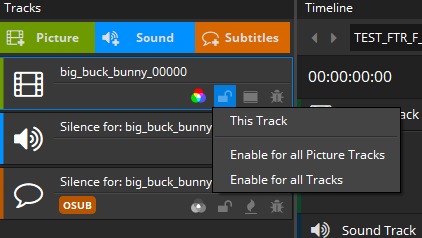
Step 2: When switching encryption on, easyDCP Creator generates automatically a random AES128 key.
Step 3: After pressing the “Generate Package…”button, a menu appears. Here you should create a DCP Digest file (*.dcpdig`) selecting the checkbox and choosing a folder). The DCP Digest is an XML file, which contains the AES keys for further KDM generation. Now the encrypted DCP can be generated.
WARNING: Do not deliver this DCP Digest file to any exhibitions because the DCP Digest contains all the keys in plain text needed to decrypt your DCP.
Step 4: For the creation of KDMs we will deliver a separate KDM-Generation tool. This tool will read the DCP Digest file with the AES keys create KDMs for the specified player systems.
Server Cerificates#
easyDCP Creator allows loading encrypted content. Each Digital Cinema play-out system or mastering station has its own private and public key, and so does each easyDCP Creator installation. The private key is known only to the play-out system, whereas the public key is contained in a public server certificate and may be distributed to content providers. When content providers choose to encrypt a DCP, they need to somehow provide the decryption keys (there is one key for every encrypted track file) to the play-out system. To ensure that no one else is able to read these sensitive decryption keys, they are themselves encrypted in a way that only the targeted play-out system is able to decrypt them. To do this, the content provider will need the play-out system’s public server certificate. This encrypted message is called a Key Delivery Message (KDM). easyDCP Creator will not keep its ingested KDMs in a repository, so that encrypted DCPs can only be viewed multiple times while having to re-ingest the keys each time. An expired KDM will no longer grant access to the DCP.
When easyDCP Creator is first started, it does not yet have a server certificate set. The demo edition does not allow unlocking of encrypted content. Only in the commercial edition, server certificates can be requested from Fraunhofer support by clicking “menu bar -> File -> Settings -> Activation Status -> Request License & Certificates”. The process is described in a screen cast at www.easydcp.com.
Unique private and public keys will be generated and provided to you online. The received license and certificate set (a Zip file) can be imported via drag & drop (or with „ menu bar -> File -> Settings -> Activation Status -> Import License & Certificates“.
The certificates are created and signed by Fraunhofer IIS. Fraunhofer IIS will delete the private key immediately, and keep the public leaf certificate in a database. The certificate is digitally signed by a chain of Fraunhofer certificates. These certificates are referred to as a certificate chain and this certificate chain, even though already included in the public server certificate, is additionally saved in a separate file. These certificates are meant for commercial use as they state the licensee’s URL and have a unique serial number that links the certificates to the license. These server certificates are tied to the licensee’s computer, using the easyDCP system hash. If the license should need to be migrated to another system, a new certificate set will have to be requested. A migration is possible in the user account at www.easydcp.com. Since the private key is very sensitive, it is asynchronously encrypted using a combination of easyDCP Creator internal keys and a password selected by the user during the License & Certificates request. Likewise, if the user chooses to store their password, it is first asynchronously encrypted. The user password needs to have 6 to 20 letters and cannot be changed after it was created.
All mentioned files are stored in the user application data folder’s certificates subfolder. Hence, the OS user management can be used to maintain multiple sets of certificates simultaneously. In order to easily determine which files belong together, they are each identified by a unique ID. The ID of the set that is currently used by easyDCP Creator is also listed in the “About” dialog (hit ‘F6’).
easydcpcreator _<ID>.privkey.pem contains the encrypted private key
easydcpcreator _<ID>.cert.sha256.crt is the public server certificate
easydcpcreator _<ID>.chain.sha256.pem contains the certificate chain
easydcpcreator _<ID>.privkey.passwd contains the encrypted user password
When easyDCP Creator is uninstalled, none of these files will be removed. If the user password file (*.passwd) is manually deleted, the user will simply be prompted for the password again the next time a KDM is ingested or an encrypted DCP is opened.
Export Server Certificates#
The content decryption context menu is only available in the easyDCP Creator edition.
The option “File -> Content Decryption -> Export Public Server Certificate” will copy both the public leaf certificate (easydcpcreator_<id>.cert.sha256.crt) and the signature chain (easydcpcreator _<id>.chain.sha256.pem) to the selected folder. The signature chain contains the leaf certificate as well as intermediate certificates and the root certificate. You may safely distribute these certificates to content providers who want to issue a Distribution KDM to your easyDCP Creator installation. When issuing (D)KDMs with easyDCP KDM Generator, place only the leaf certificate file (*.crt) into the server certificate’s folder or just drag and drop it into the corresponding input form.