
Composition Marker#
Composition Marker are marker carried in the Marker Track contained in the Composition Playlist. They signal special events like the First Frame of End Credits (FFEC) and are used for purposes like to automatically dimm the light in theaters when the end credits roll.
A Composition Marker consists of a predefined Marker Label and Scope, an optional and custom Annotation Text and the relative offset from the start of the Marker Track the Marker is located in. This means in case of a Composition with multiple Reels the offset may not represent the absolute position of the Marker in the Composition.
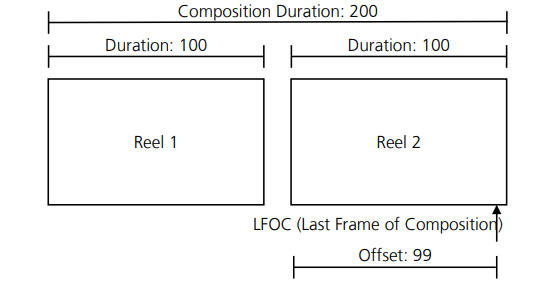
In this Illustration a Marker is located in the Marker Track of the second Reel. The Marker Track has no Entry Point or an Entry Point value of zero. In this case, as the start of the Marker Track and the Reel coincide, the absolute position of the Marker in the Composition is defined by the start of the Reel and the Offset of the Marker in the Marker Track. On the other hand, if a Marker Track has an Entry Point value other than zero, the absolute position of its Markers are further offset accordingly.
Overview#
If a loaded DCP or project contains Compositions with Marker, easyDCP Creator will display the associated Marker Tracks. If the first Composition Marker is added to a Composition, easyDCP Creator will automatically insert the required Marker Tracks into the Composition. Likewise, if the last Composition Marker is removed, the associated Marker Tracks in the Composition will be removed as well.
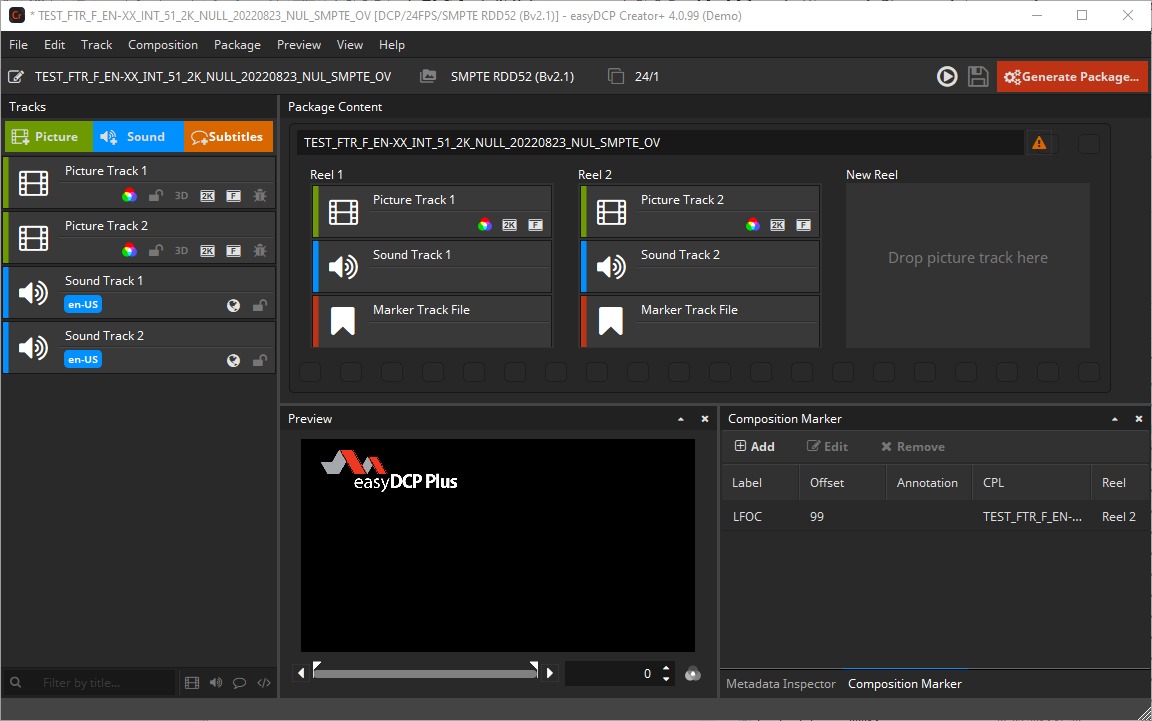
All existing Marker will also be listed in the Composition Marker tab next to the Metadata Inspector tab. This list is used for adding, editing or removing any Markers as well.
Editing#
Adding a new Marker#
To add a new Marker the Reel, or in the Timeline View the Picture Clip of the Reel, has to be selected the Marker shall be added to. By clicking Add in the
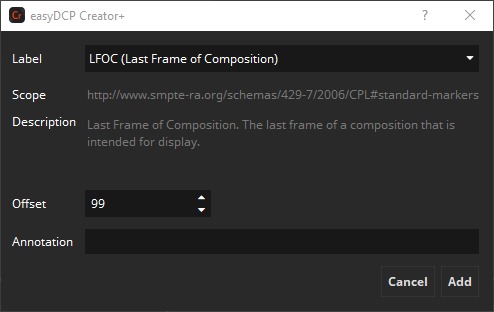
Composition Marker tab, next to the Metadata Inspector tab, the Composition Marker dialog will open.
In this dialog one of the predefined Marker Label, the Offset in the Marker Track and an optional Annotation can be set.
After confirming with Add easyDCP Creator will automatically create all the required Marker Tracks if they do not exist yet and will add the new Marker.
Edit a Marker#
Markers can be edited by selecting the Marker to be edited in the Composition Marker tab and clicking Edit. This will bring up the same dialog as for adding Marker prefilled with the current values for the Marker. After modification the changes can be applied by clicking Save.
Remove a Marker#
Markers can be removed by selecting the Marker to be removed and clicking Remove. If the last Marker in a Composition was removed, easyDCP Creator will also remove all remaining and now empty Marker Tracks from the Composition.