
Getting Started#
Project Configuration#
At the start of easyDCP Creator or when creating a new project, the “Create New Project” dialog pops up. It is used to set the initial configuration of your project.
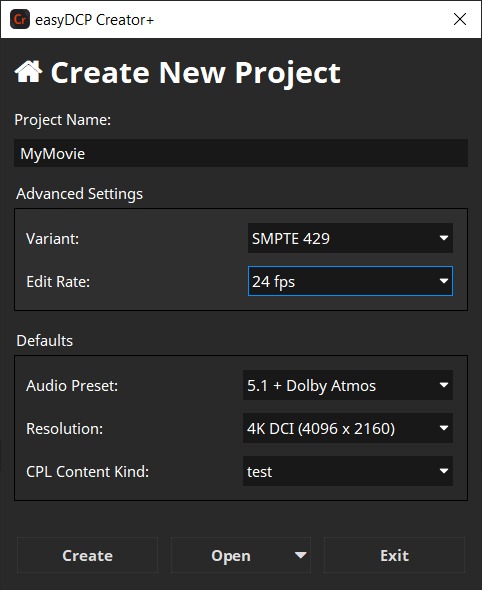
Project Name – Name of the project that will be used as title of the package and the first composition. The project name can be changed later on.
The Project Name is limited to 14 characters and may not contain any spaces or underscores to be compatible with the ISDCF Digital Naming Convention used by easyDCP Creator.
Variant – The variant defines the specification the DCP shall meet. Now InterOp, SMPTE 429 and SMPTE RDD 52 (Bv2.1 Application Profile) are supported. We recommend either SMPTE RDD 52 or SMPTE 429. This can be changed later.
Edit Rate – Should match your input material’s native edit rate as easyDCP Creator will not adjust your input material to the selected edit rate. There is only an edit rate conversion for the audio files if your input material has a different edit rate. The edit rate cannot be changed after the project was created.
Since version 4.1 easyDCP Creator supports mixed 2K/4K and 2D/3D DCP. Therefore, Project Type selection to choose between 2K/4K/3D project type was removed. The type is now set directly per Picture Track.
Click Create to create the project. To access the project configuration after the project was created, select File -> Project Configuration… from the menu.
Digital Cinema Naming Convention#
In digital cinema, it is common practice to follow a certain naming convention. The most important attributes such as the resolution, language, audio layout and so on are coded into the title so that a projectionist can later see them at first glance. This technique is called Digital Cinema Naming Convention.
easyDCP Creator+ provides an editor that helps you put together a proper title. The title will be used both for the project and also for the DCP and its Composition Playlist. Please note that it’s not mandatory to fill in all fields.
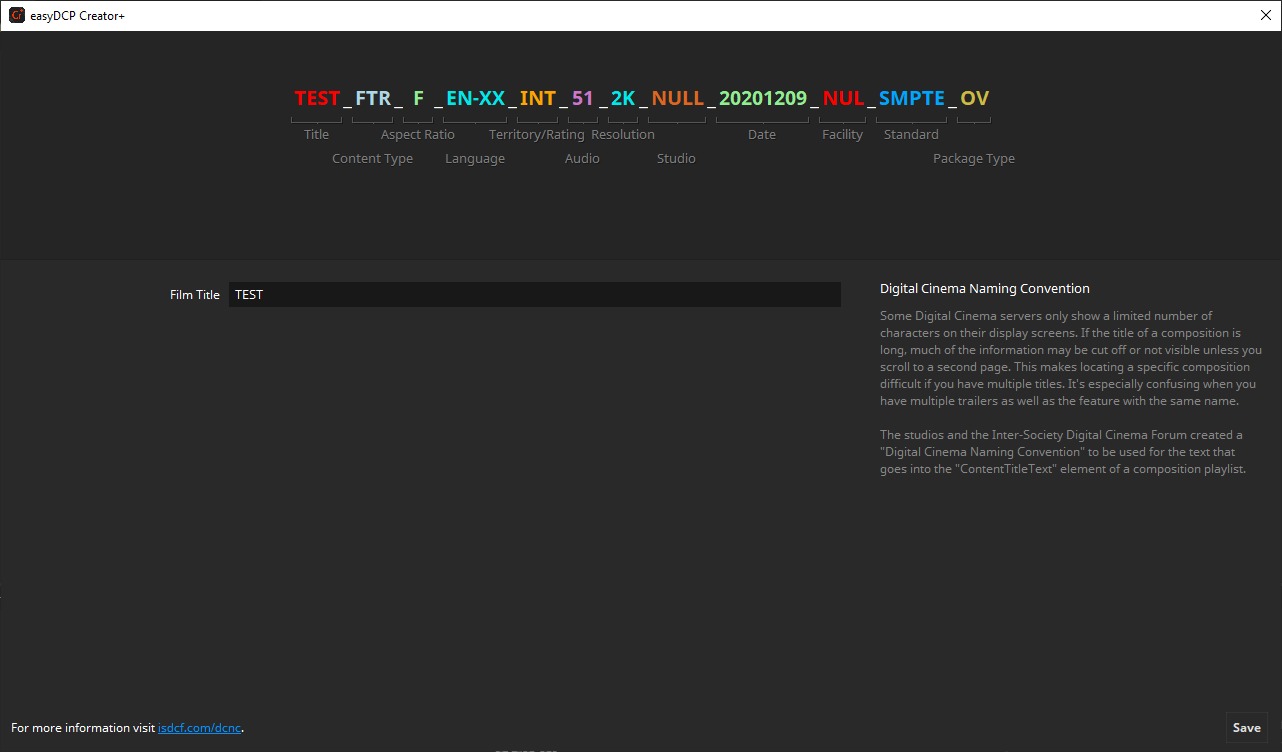
To change different properties you can select them at the top by clicking on the entry. This will open the edits for the selected group.
This dialog tries to fill out as many entries as possible automatically. Values like Content Type, Standard and Package Type are derived from the current project, but can be overridden manually.
All values are compliant to the Digital Cinema Naming Convention, Version V.9 (see www.digitalcinemanamingconvention.com)
The Main Window#
After creating a new easyDCP Creator project, the start-up screen comes up:
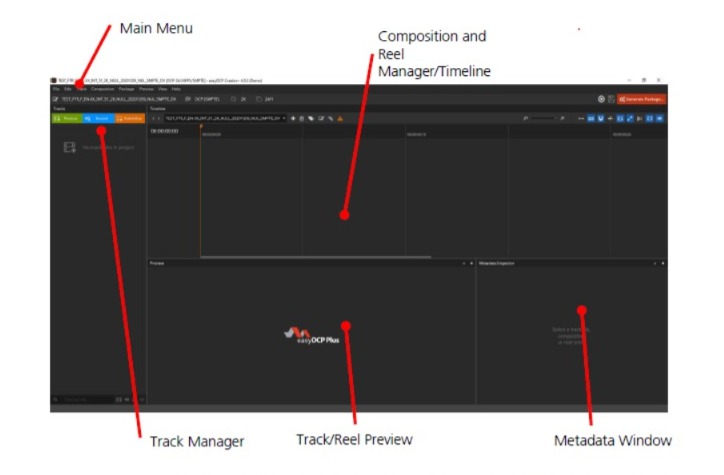
The main window is divided into several sub windows like a Track Manager and a Reel or timeline window. The following sections explain how to use the windows and features.
Per default the reel view is used, but it can be switched to timeline in the settings (New Project Defaults => Uncheck “Use Reel View for DCP”).
Packing List (PKL) Parameters#
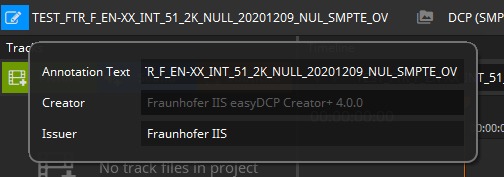
Each DCP has a packing list (PKL) that lists all files contained in the DCP as well as some top-level metadata such as the creator, issuer and annotation text. The PKL’s annotation text can be regarded as the DCP title.
To edit the packing list parameters, click the edit-icon in the main tool-bar below the menu bar:
Annotation Text#
The Annotation Text appears on the screen if a volume (e.g. USB-Drive, Hard disc Drive) is connected to a digital cinema system before ingest. This annotation text can be regarded as the DCP title. For DCPs that only contain a single Composition, it is common to use the same title for both the PKL and CPL. The title should follow the digital cinema naming convention. For more details, please refer to chapter 4.1.1.
The symbol next to the line edit to enter the name allows synchronizing the package title with the composition. If the chain is connected, updates will also update the name of the first composition. The same vice versa happens when updating the composition content title.
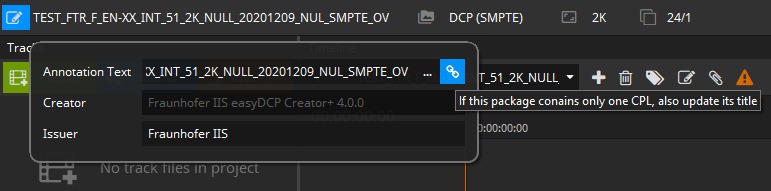
This synchronization mechanism is also available for Tracks to have a consistent annotation text and also for Creator and Issuer of PKL and CPL.
Creator#
Commonly, the application that was used to create the DCP is stated here. This field is informational only and may be displayed by several D-Cinema servers.
The Creator is automatically filled with the easyDCP Creator version used for generation.
Issuer#
State your company name here. This field is informational only and may be displayed by several D-Cinema servers.
Settings#
With the settings you are able to set up default values for new projects, image processing and file naming options.
To set up settings, got to File -> Options
A new dialog will appear to set up the options described in the following chapters:
New Project Defaults#
Default project settings are automatically applied when creating a new project. You can set your own company name as the issuer or a default Composition Playlist (CPL) content kind (e.g. feature, trailer etc.). It’s also possible to change the default project type from SMPTE to InterOp.
The Use Reel View for DCP options defines the default view to be used when starting easyDCP Creator. When checked it will use the reel view that has always been present in easyDCP Creator. When unchecked the timeline view introduced in easyDCP Creator 3.5 will be used.
No matter of the default setting, the view in use can be toggled at any time during the workflow using the View menu in the menu bar and toggling the Timeline entry or by pressing Ctrl + T.
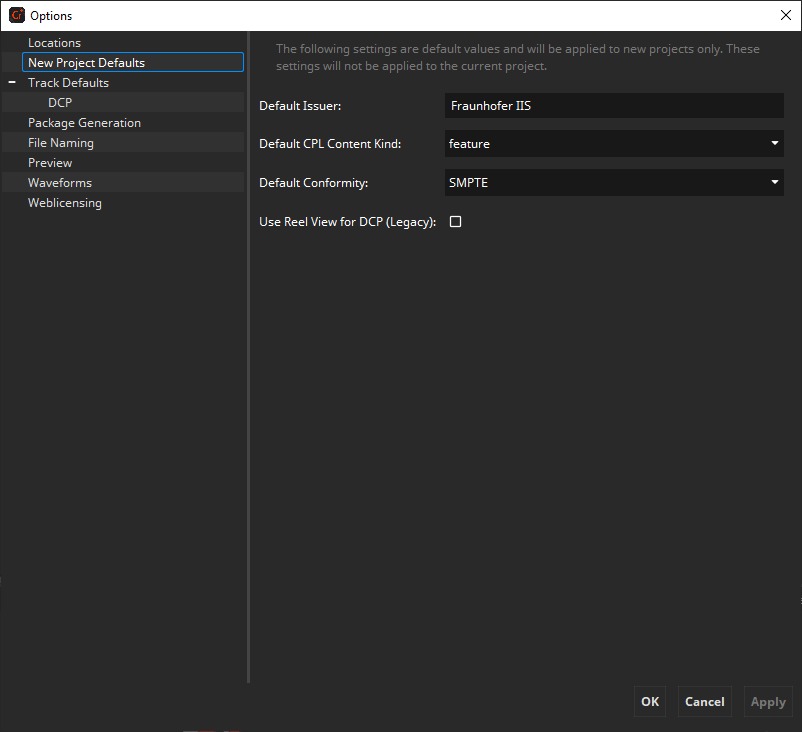
These settings are default values that will be applied to new projects only. They will not be applied to the current project. Exception is the “Use Reel View for DCP” option which just requires a restart of the easyDCP Creator to take effect. To switch between timeline/reel view during runtime check the info box above.
Track Defaults#
Default Track settings are automatically applied when adding new Tracks to a project.
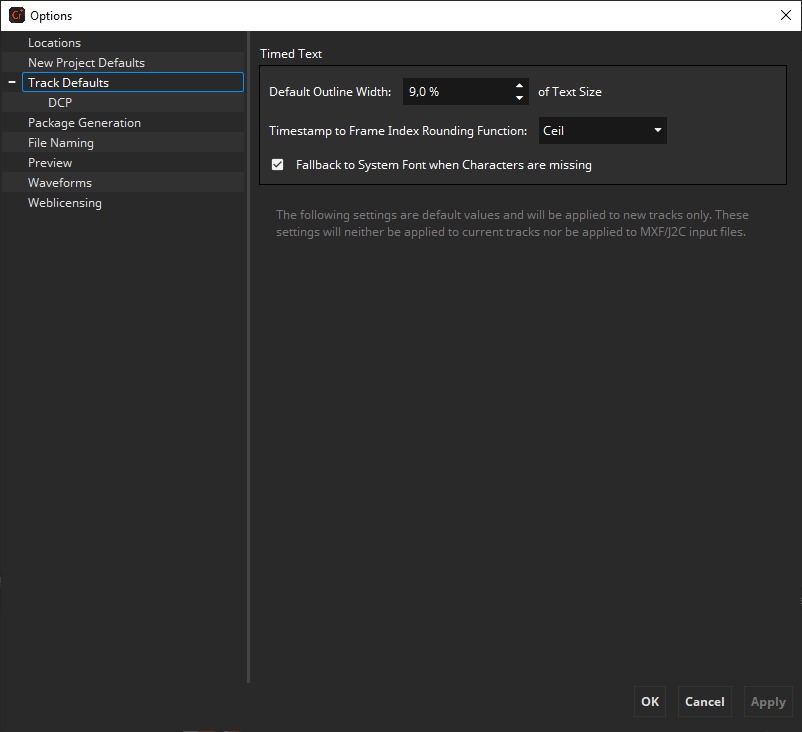
Common Default#
Default Outline Width
The outline thickness for timed text is not defined in the specifications. With this setting, the default outline thickness can be configured and will be applied to new Timed Text Tracks.
This setting only affects the way timed text is rendered in easyDCP Creator. Unless timed text is burnt into the images, this setting will not affect how a cinema server renders the outlines.
Timestamp to Frame Index Rounding Function
The rounding mode influences in some cases at which exact frame index a subtitle appears or disappears.
This setting only affects the way timed text is rendered in easyDCP Creator. Unless timed text is burnt into the images, this setting will not affect how a cinema server renders the timed text.
Fallback to System Font when Characters are missing
If characters are missing in the loaded font and this option is enabled, missing characters will be replaced with characters from a similar font.
This setting only affects the way timed text is rendered in easyDCP Creator. Unless timed text is burnt into the images, this setting will not affect how a cinema server renders the outlines.
These settings are default values and will be applied to new Tracks only. They will not be applied to already present Tracks.
DCP#
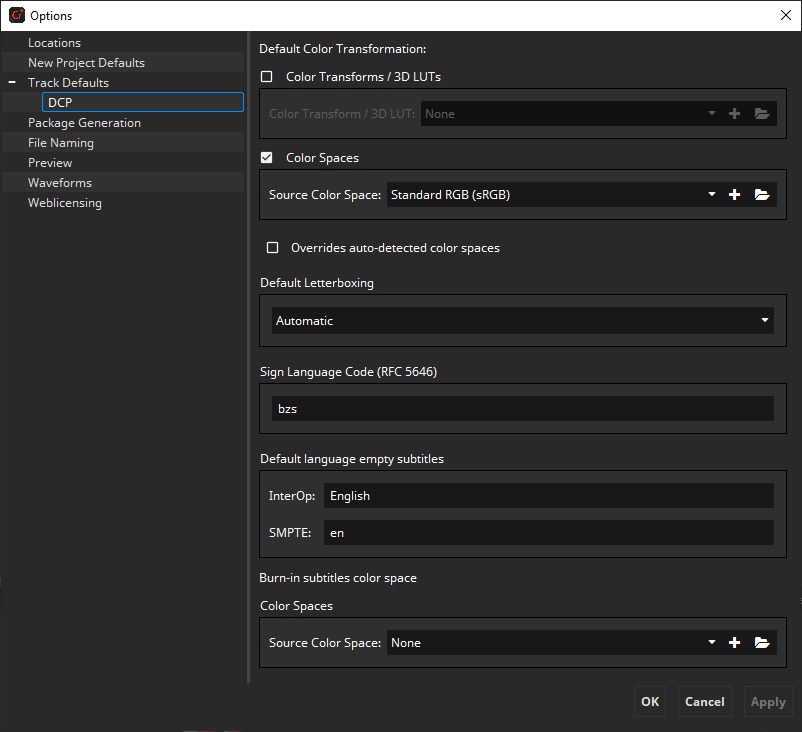
Default Color Transformation
Specify here which default source color space or color transform should be assumed for new Picture Tracks. The destination color space when selecting Color Spaces always is XYZ.
The “Overrides auto-detected color spaces” option disables auto-detection of color spaces and will always use the configured Source Color Space. When disabled the selected Source Color Space is chosen when the color space can’t be determined automatically.
Default Letterboxing
Specify here which letterboxing mode, if any, should be used for new Picture Tracks. If “Automatic” is chosen, easyDCP Creator will choose a best fit for the project type and the input material.
These settings are default values and will be applied to new Tracks only. They will not be applied to already present Tracks.
Sign Language Code
Specify here which language the default for the sign language tracks shall be. This settings effects only sound tracks containing sign language.
Default language empty subtitle
Specify the default language being used for new empty subtitles. It is possible to specify the language separately for InterOp and SMPTE subtitles.
Burn-in subtitle color space
Specify the default color space used for subtitles that get burned-in. They will be converted from the source color space to XYZ during burn-in.
These settings are default values and will be applied to new Tracks only. They will not be applied to already present Tracks.
Package Generation#
With the package generation options you are able to modify the way images will be processed during DCP generation.
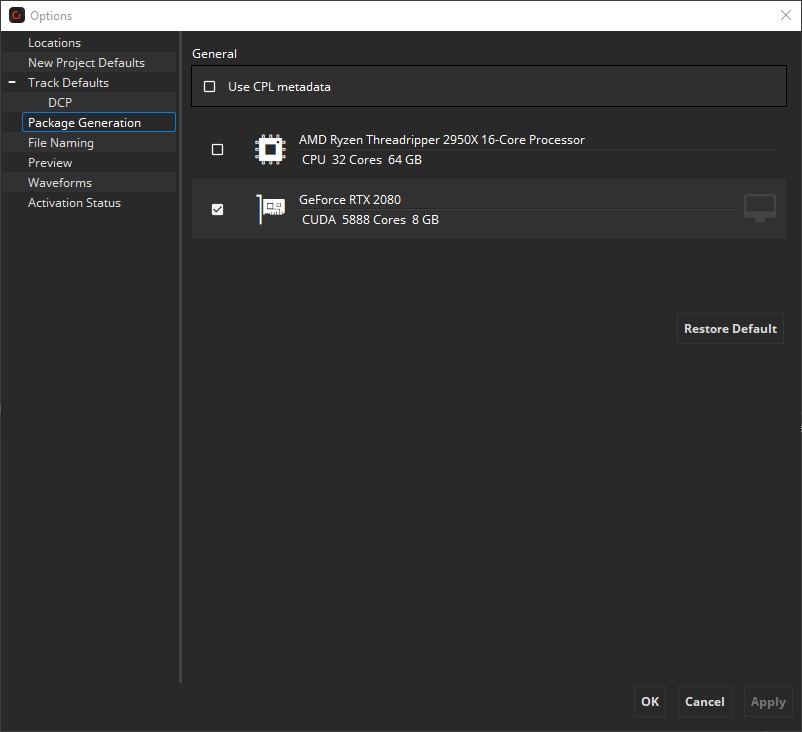
Use CPL metadata
SMPTE DCPs can contain additional metadata in the CPL. Enabling this option will add these information some servers might show then.
CPU/GPU Encoding
Choose whether you want to use the CPU or GPU for encoding of the JPEG 2000 images.
GPU encoding is only available on Windows.
File Naming#
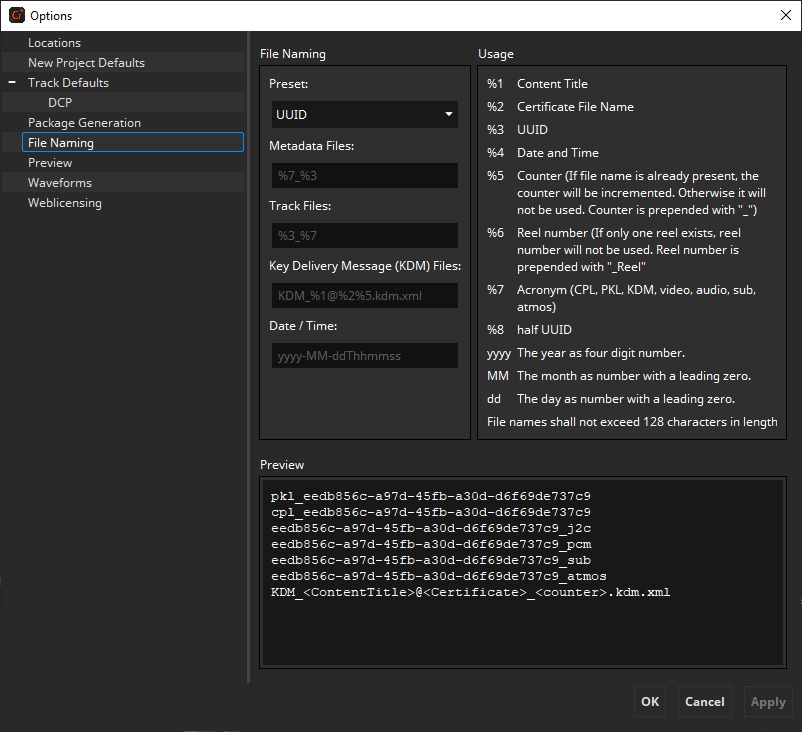
In the File Naming pane, you may specify how the files of a generated DCP shall be named. When ingesting a DCP into a cinema server, the file names are often not even displayed, but only the Composition Content Title. Adjusting the naming scheme is optional.
There are two presets available, but it’s also possible to define your own file naming presets.
UUID – By default, the names of all generated files (except VOLINDEX and ASSETMAP) are composed of its UUID and default suffix, e. g. “CPL_feae1e80- 0760-4c0f-a806-53414bcc8dab.xml” or “2a3d577d-0ace-482a-bb60- 61b5ebbd5ba4_j2c.mxf”.
Content Title – The names of all generated files (except VOLINDEX and ASSETMAP) are composed of its Content Title, Reel number, UUID and default suffix, e. g. “CPL_MovieTitle_TRL1_3D_48_F133_OV_feae1e80-0760-4c.xml” or “MovieTitle_TRL1_3D_48_F133_OV_Reel1_2a3d577d-0ace-48_j2c.mxf”.
Custom – When this preset is selected, you can customize your own file naming via the placeholders shown in the usage.
Preview#
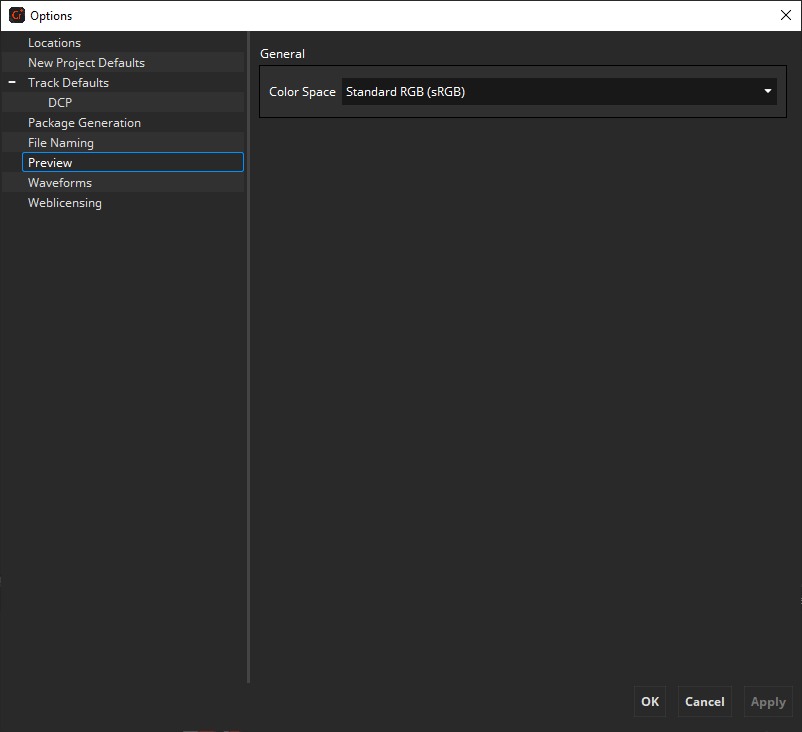
In the Preview pane you can select the Color Space that will be used for the thumbnails in the timeline as well as the preview. If a color transform isn’t available from the source to the timeline color space, the source color space will be shown.
Activation Status#
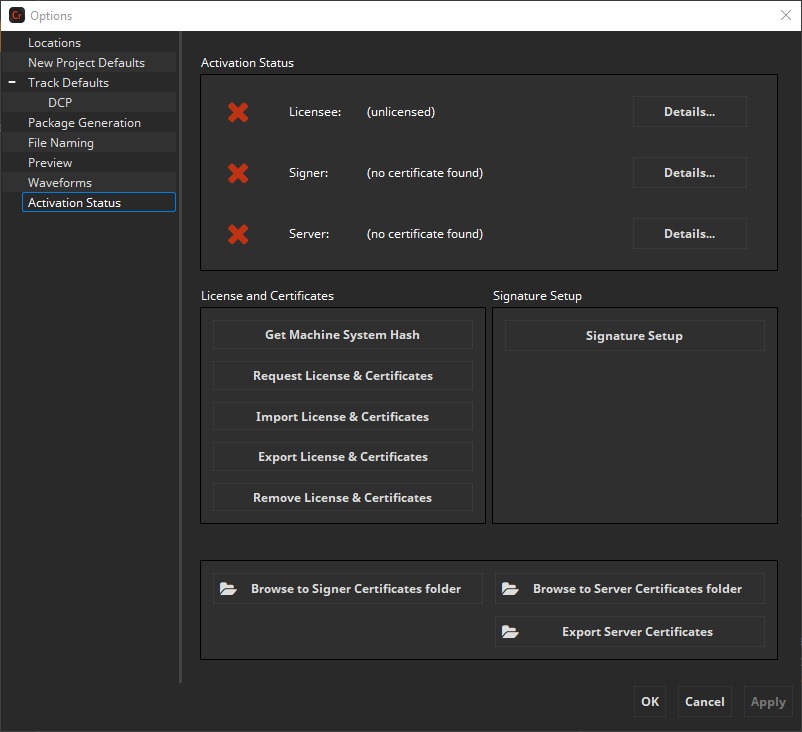
In the Activation Status pane you see all your license and certificate information. You can see the Licensee and the certificates in the upper area and show the details by clicking the “Details…” button next to them.
A new license or certificates can be requested and imported using the “Request License & Certificates” and “Import License & Certificates” buttons.
Activation Status in only available in Demo mode and when importing an offline license.
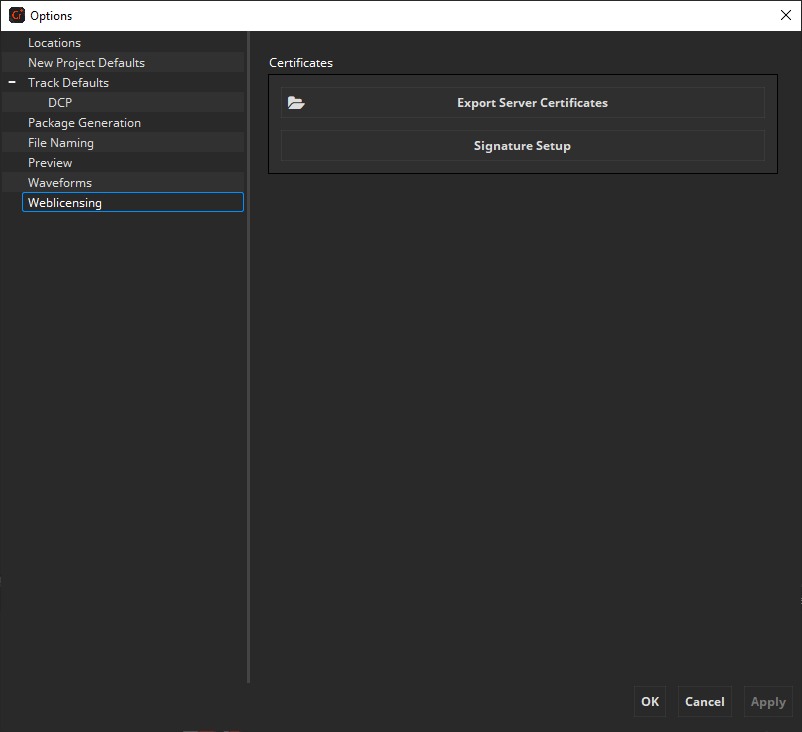
Weblicensing#
In the Weblicensing pane signature can be set up and server certificates can be exported.
Weblicensing in only available in online mode.
Undo/Redo functionality#
Starting with easyDCP Creator 3.8 it is possible to revert/redo changes done to the project. Undo is triggered with Ctrl/Cmd + Z, redo with Ctrl/Cmd + Y. It’s also possible to use the UI for it. There you find the option in the Edit menu. That will also show you which action will be reverted/redone.
Below you can find lists of covered and uncovered features.
Covered functionality:
Changing PKL/CPL title
Changing issuer
Changing issuer language
Changing CPL content kind
- Timeline
Adding clips
Removing clips
Moving clips
Split
Insert
Add Silence Sound Track
Add Empty Subtitle
Pre-/append Black Frames
Switching composition
Adding/removing compositions
- Track Manager
Adding/removing tracks to/from the track manager
Changing track annotation text
Changing letterboxing
Changing color space/transform
Changing supplemental state
Changing encryption
Changing subtitle burn-in state
Changing subtitle display type
Changing sign language
Changing audio configuration
- Compositor
Adding/removing tracks
Moving reels
Adding/removing reels
Adding/removing compositions
Duplicate Reel
Uncovered functionality:
- Compositor
Changing offset/duration of tracks