Quality control#
Before distributing a DCP, it is highly recommended to run both the hash check and the validation test (both explained below). When running these tests, the package should be loaded not from the local drive, but directly from the mobile hard-drive.
Log/Issue Reports#
When a new asset is loaded, easyDCP Player+ automatically executes numerous checks, identifying potential issues related to integrity, formatting and security. The results are collected and presented to the user in a log window.
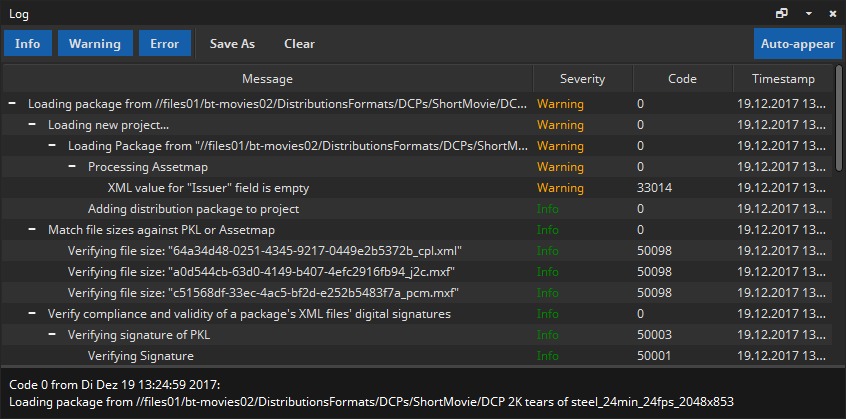
The user should always read the error or warning messages very carefully. Issues are presented in a hierarchical tree. Typically, the lowest level contains the most detailed error message. The bottom half of the window shows all details of the highlighted issue. Each log entry has a severity level: Info, Warning or Error.
Info: Feedback to the user or general log entries are classified as info.
Warning: Issues that might result in the DCP not working on some servers, but that easyDCP Player+ can still cope with are classified as warnings.
Error: If easyDCP Player+ cannot continue to process the asset, an issue is classified as an error.
The whole log can be saved as a *.HTML or *.XML` file using the “Save As” button in the tool bar. When turning to the easyDCP technical support with a question regarding a specific issue listed in the log, please attach the file.
By default, the log window appears whenever a new Warning or Error was added to the log. By disabling the “auto-appear” checkbox in the top right corner, the window will be kept hidden until it is manually popped up using the context menu -> Log Window option (or press STRG/CMD + L). Disabling the auto-appear option is not recommended.
The MXF hash values are not checked automatically, since this would be too time consuming. Please refer to chapter 7.3 for details on how to apply a hash-check on a single package or the whole playlist.
Metadata Inspector#
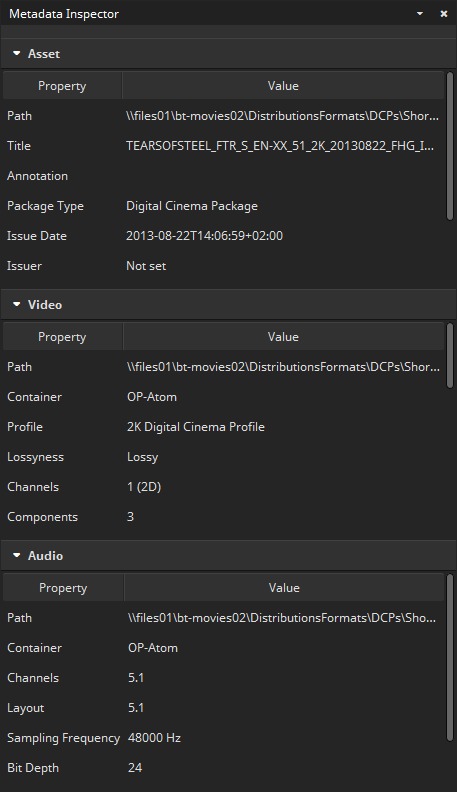
The Metadata Inspector can be opened via “context menu -> Asset -> Metadata Inspector” or by pressing “I” on the keyboard. It gives information about the current asset’s general properties as well as audio- and video-specific properties. Each field is explained in its tool tip. The video properties “Resolution” and “Bit Depth” contain data that is listed individually for each color component (for DCPs they are always identical).
Additionally, the same information is available by clicking on (i) next to a playlist item.
Validator#
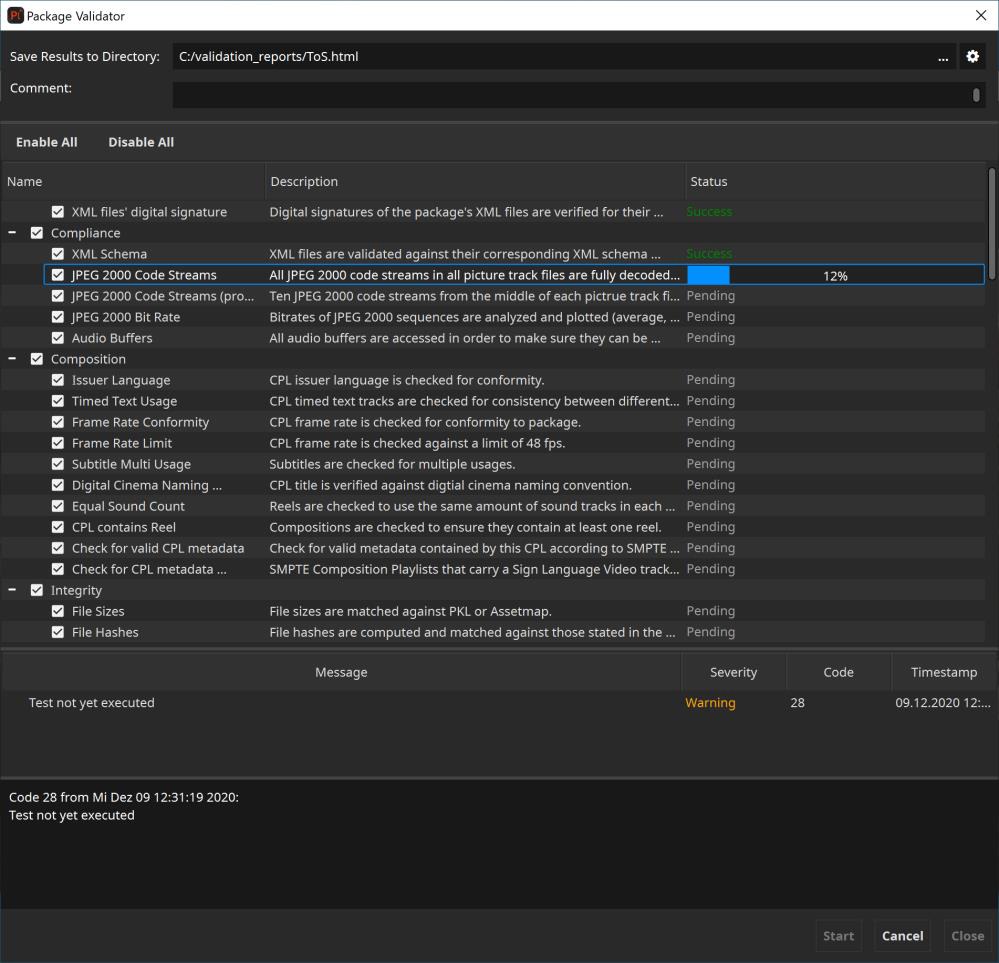
The package validation module was introduced with easyDCP Player+ 3.4.0. It can be used to automatically search for a range of potential issues in a DCP. The validation is split up into many individual tests. Tests are executed one after the other. Some tests only take a split second (for instance: check if all files exist) while others may take a while (for instance: check if all JPEG 2000 images can be decoded).
Since easyDCP Player+ 3.5.0 it’s additionally possible to validate supplemental packages (without the corresponding OV) and encrypted packages (without a corresponding KDM/easyDCP Digest).
Please be aware that only feasible tests will be executed. For example, if the VF references picture tracks from the OV, the JPEG 2000 codestream test will be skipped. The test will be skipped as well, when the KDM for decryption is not available.
Once a test was executed, it gives a result that is either Success, Warning or Failed. When selecting a test, more details can be found in the bottom section of the validation dialog. A tree of events will describe what the test has done and each entry in the tree can in turn be selected to see its details in the dark-grey text edit below. It is often not possible to foresee whether an issue will cause the DCP to be rejected by a cinema server or another tool in the production chain. For this reason we encourage the user to even take warnings seriously.
The result of a validation run is always stored as a report in HTML format. By default, the file will be named after the folder that contains the DCP and be located next to it. Also, the overall test result will be included in the file name:
DCP: C:\MyDcps\AliceWonder_FTR-1_S_EN-LAS_US-13_51_2K_DI_20060607_TDC_OV\
 Report: C:\MyDcps\AliceWonder_FTR-1_S_EN-LAS_US-13_51_2K_DI_20060607_TDC_OV –
           easyDCP Validation Report (Success).html
By clicking the cogwheel icon next to the “Save Results to Directory” field, the default behavior can be changed so that the file be located inside the DCP directory and/or that the overall validation result not be included in the filename.
DCP: C:\MyDcps\AliceWonder_FTR-1_S_EN-LAS_US-13_51_2K_DI_20060607_TDC_OV\
Report: C:\MyDcps\AliceWonder_FTR-1_S_EN-LAS_US-13_51_2K_DI_20060607_TDC_OV\
         AliceWonder_FTR-1_S_EN-LAS_US-13_51_2K_DI_20060607_TDC_OV - easyDCP
         Validation Report.html
The validation report is separated into six sections:
General Information – contains top-level metadata on the package, the test result and the computer and easyDCP version where the validation was carried out. Custom annotations that the user entered into the validation dialog’s “comment” field will also be added to this section.
Composition Playlists – lists technical properties (such as duration, resolution, package type, JPEG 2000 profile, audio layout, etc.) individually for each composition.
Quality Report – contains all the test results and details in an interactive view
Recommendations – in contrast to Quality Report, this interactive view contains results and details of all recommended test. The test results of these tests do not influence the global test result.
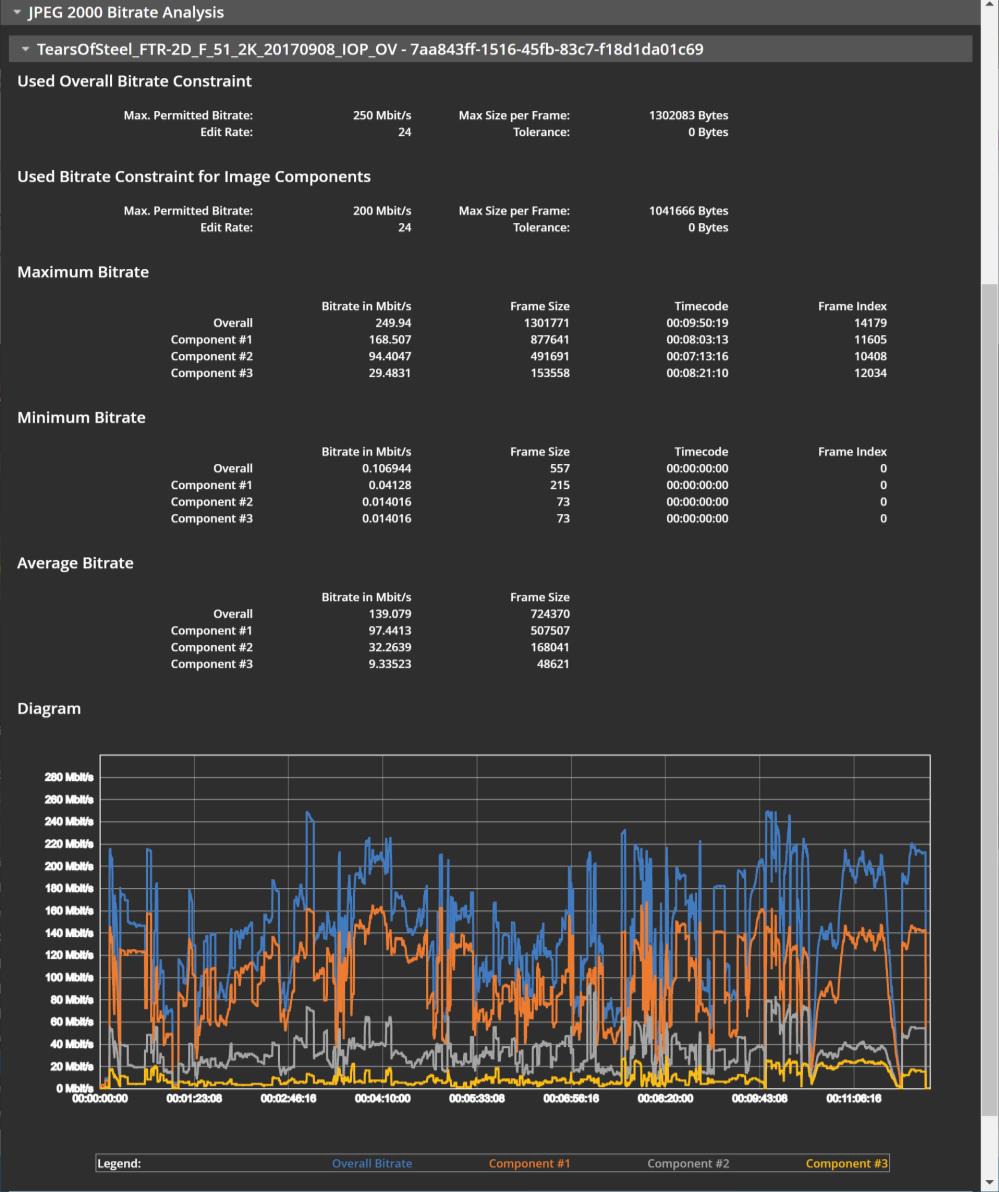
JPEG 2000 Bitrate Analysis – contains an interactive plot of the bitrate in Mbit/s over time for each CPL. Additionally, some statistics such as peak and average bitrate or the time code of the largest frame are stated.
Files – lists the content of each XML file as well as the metadata of each MXF file in the package. If the package is a supplemental package (version file - VF) and the original version (OV) was also loaded, both packages’ files are listed.
Directory Snapshot – lists of all files (including those that don’t belong to the package) within the folder or any subfolders of the package, including the file’s size in Bytes and date of its last modification. Paths are stated relative to the package’s root folder so that names of the user’s local or network repository are not disclosed.
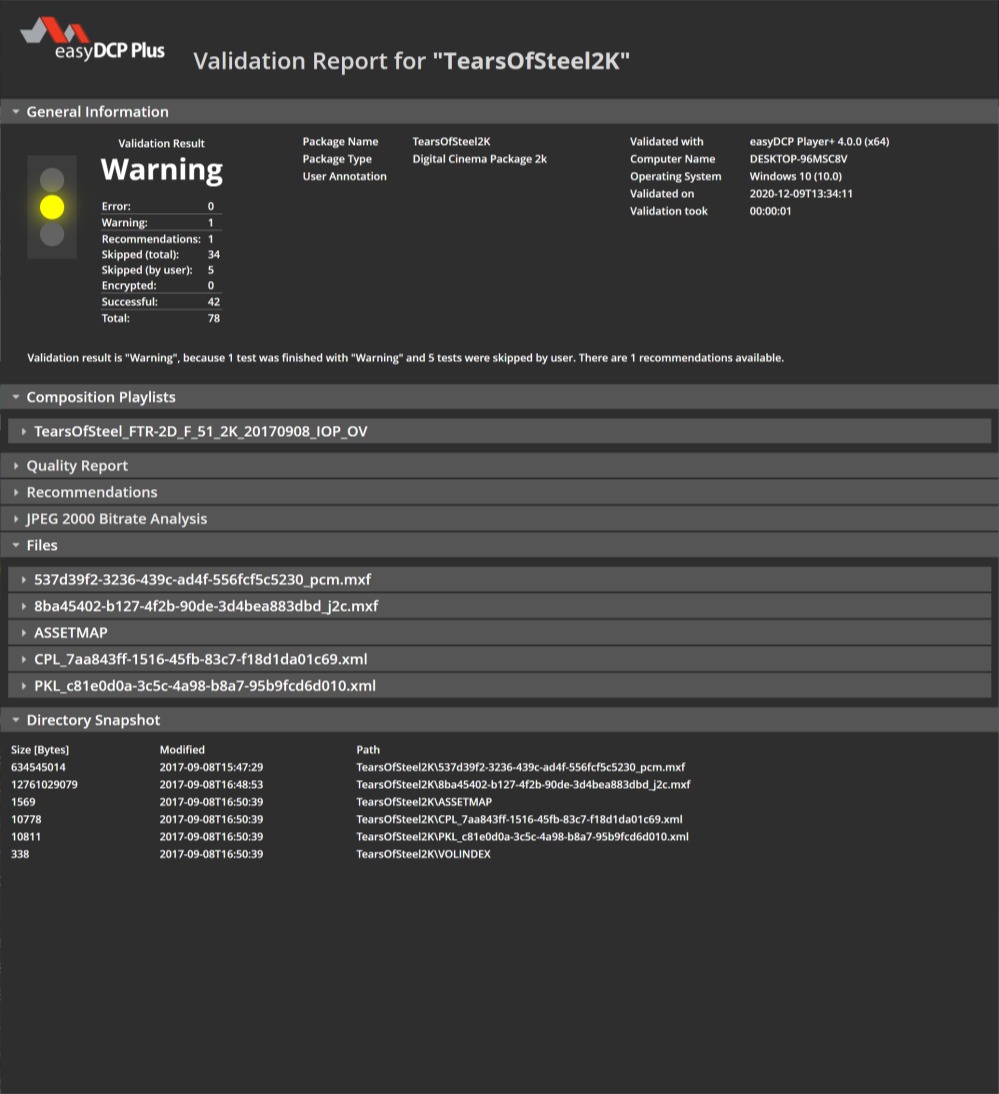
The overall result of the validation is
Failed – If at least one test found an error.
Warning – If at least one test found a warning or has been deliberately disabled by the user (by clicking the checkbox next to the test in the validation dialog), and no test found an error.
Success – If all tests were executed and none of them found any potential issues (warnings or errors).
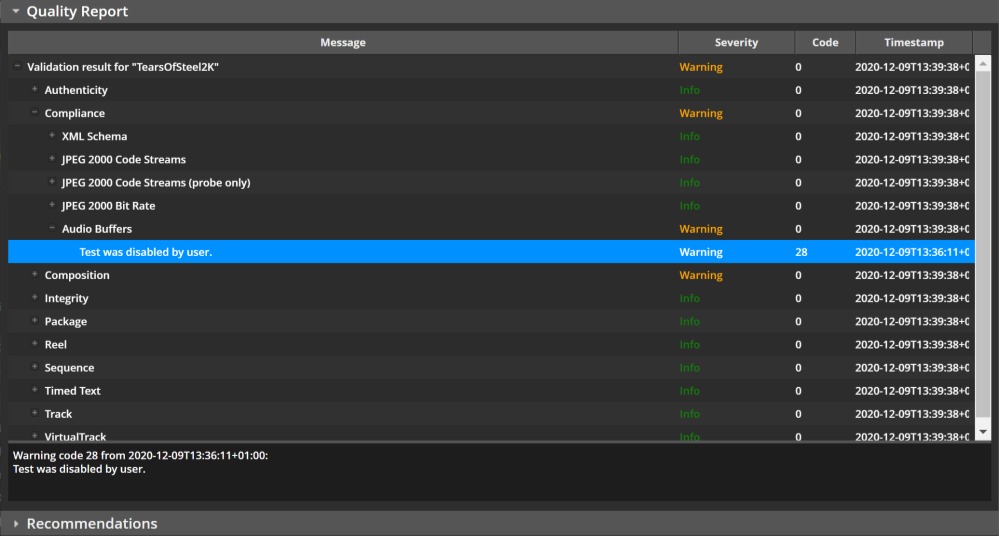
The quality report shows the results and details of all tests. When selecting a test, details are shown in the dark grey box on the bottom. In the below example, the test result is a warning, because the tests was deliberately disabled by the user by deselecting it before the start of the validation.
The Bitrate Analysis tab gives information on the JPEG 2000 bitrate. Every DCP is subject to a maximum bitrate that should never be exceeded. The maximum is typically 250 Mbit/s for DCPs, but can be higher for high-bitrate DCPs. The maximum bitrate is independent of the resolution or whether the movie is in 2D or 3D. easyDCP Player+ will infer the maximum bitrate based on the package type and JPEG 2000 profile. If the user knows that the maximum bitrate for a particular DCP has been assumed incorrectly (e.g. because it’s a high bitrate DCP with up to 500 Mbit/s as opposed to just 250 Mbit/s), they can manually change it in the Playlist Editor.
JPEG 2000 is a highly data-dependent image compression scheme, though. If a particular image is easy to compress, e.g. because there are not a lot of details in it, then the maximum bitrate will not be reached. Only images with many details (or a lot of noise) will have to be capped in order not to exceed the data rate. The bitrate computed by easyDCP is based only on the size of the decrypted JPEG 2000 file (i.e. without MXF overhead) and is converted from bits to Megabits using 10^3 (1000) as demanded by the specifications - and not 2^10 (1024). For 250 Mbit/s DCPs, very minor bitrate violations in the range of 100 or 200 bytes are typically not a problem. For this reason, a tolerance can be configured in easyDCP Player+’s option pane for the CPU-based decoder.
The diagram plots the bitrate over the time for each CPL. The plot is zoomable via the mouse wheel.
The validation can also be triggered from the command line. This way it is also easy to batch-validate an existing collection of DCPs.
Below is an example of Windows Batch file for validating all DCPs in a given folder:
@echo off
pushd \\networkstorage\MyDcpRepository
set EasyDcpBin=C:\Program Files\Fraunhofer IIS\easyDCP Player+ 3.7.0\bin\easyDCP
Player.com
for /f "tokens=*" %%D in ('dir /S /B /A:-D assetmap*') do (
    echo Validating %%D
    echo.
    "%EasyDcpBin%" "%%D" -validate -o C:\\Reports
    echo.
    )
popd
For more details on how to use easyDCP Player+ from the command line, please refer to chapter 11.
Hash Checker#
When loading a package, easyDCP Player+ will validate file sizes of all files. However, it will only validate the XML files’ hash values. A file hash validation of the remaining files in the package has to be manually triggered by the user since it takes too long to be done automatically, especially for large files. Before distributing a DCP, the hash values should be checked. To do this, it makes sense to load the package directly from the mobile hard drive. Select “Check File Hashes” in the context menu or press “H”. If a package has been loaded, all asset files and their reference hash values will be listed. Click “Check Hashes” to start the hash value calculation. To make the hash check available for encrypted DCPs without requiring content keys to be loaded, the “Playlist Editor” Dialog also has a button that opens the “Check File Hashes” dialog.
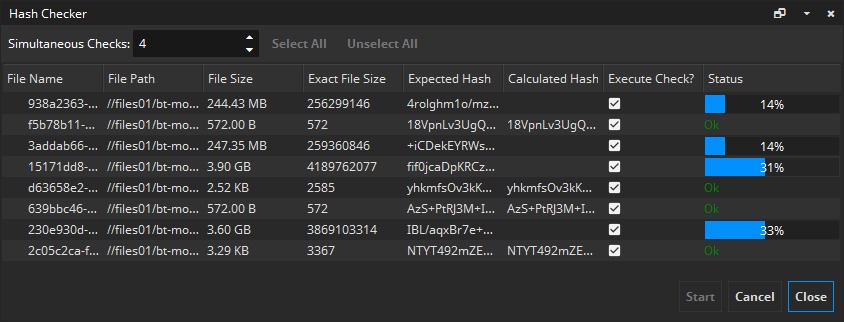
In order to calculate hash values for arbitrary other files, drag & drop the file into the “Hash Checker” dialog.
A hash value validation succeeds if the calculated hash value is identical to the reference hash value listed in the DCP. The “status” column will then display a green “Ok”.
easyDCP Player+ also has a command-line parameter to perform the hash check. Please refer to chapter 10 for more information.
Audio Meters#
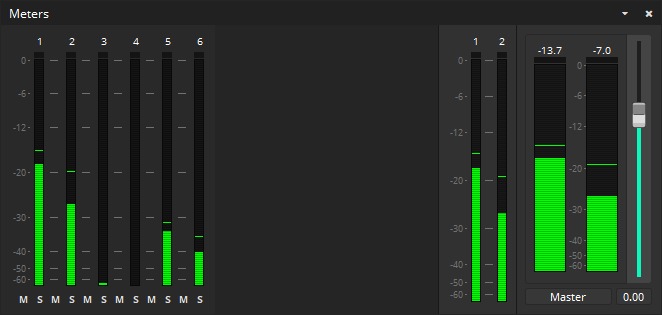
The audio meters module was introduced with easyDCP Player+ 3.6.0. It visualizes the audio processing of the currently opened asset by considering the configured input and output channel mapping (please refer to chapter 10) and the available channels of the currently configured audio output device.