
Preferences#
Video Rendering#
easyDCP Player+ employs multiple advanced video rendering technologies, that are both platform and hardware dependent. The settings found in the options dialog’s “video” pane merely influence if easyDCP Player+ requests these features. If they are actually available on the system can be seen in the easyDCP Player+ system info dialog (Press F10).
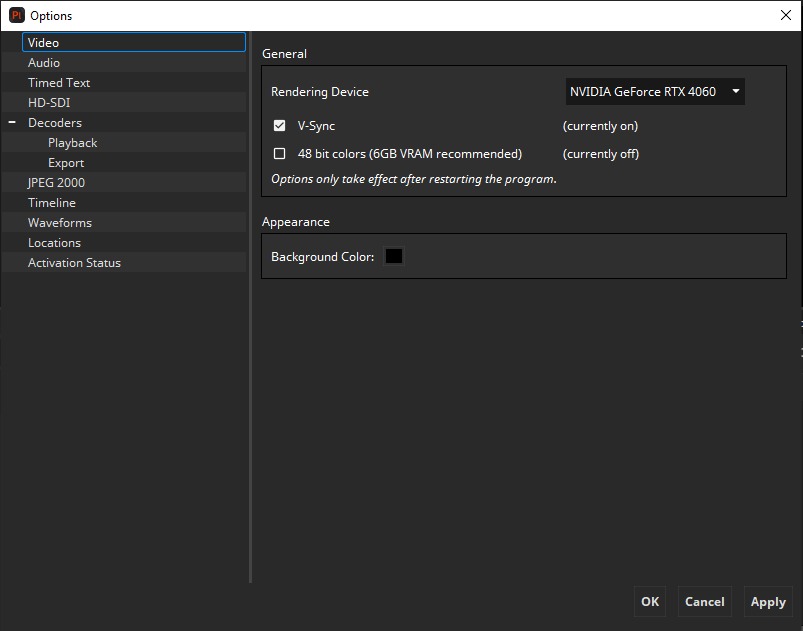
Rendering Device: Select the GPU used for rendering of the images. Only Vulkan compatible GPUs are support. If multiple GPUs are installed use the one with higher compute power for smoother playback.
V-Sync: Since v3.0 easyDCP Player+ has two render modes: V-Sync-independent rendering and V-Sync-rendering.
V-Sync-independent rendering: Update the frame as soon as possible. The video thereby may suffers from tearing artifacts. This was the only option in all versions prior to v3.0. It is still a good choice if the display runs with 60 Hz or more. It is also the fallback option, if V-Sync rendering is not available.
V-Sync-rendering: Video rendering waits for the next V-Sync signal before the frame is updated. Especially, if the target display is a LCD-TV or a projector, or if the maximum refresh rate is significantly lower than 60 Hz (e.g. only 30 Hz),
then the V-Sync rendering mode should be selected. Even if V-Sync was requested, the driver might not enable V-Sync due to other conflicting settings in the graphics driver control panel. When you start playback in V-Sync-Rendering mode, the package’s frame rate as well as the display’s refresh rate will be started in curly brackets next to the “Render” fps line (e.g. “Render (24 fps @ 24 Hz) in the statistics window. easyDCP Player+ will now explicitly translate between the package’s frame rate and the display’s refresh rate, which gives best results when both rates are equal or when the display’s refresh rate is an even multiple of the package’s frame rate.
48 bit colors: If enabled easyDCP Player+ will internally use double precision for rendering. This will significantly increase GPU resource usage. Quality improvements can only be expected for DCPs as well as DPX and TIFF files with bit depth higher than 8 per component. Also consider that the bit depth of the presented image is limited by the properties of the display.
Background Color: This button allows to pick a custom color for the video canvas in order to determine if an asset contains black pillar- or letter- boxes.
Audio Rendering#
easyDCP Player+ supports multi-channel output. By default the audio output device that supports most channels will be selected. Open the audio options pane (context menu->Options->Audio tab) for a list of all available audio renderers. Supported interfaces are DirectSound (Windows), ASIO (Windows) and CoreAudio (Mac OS X).
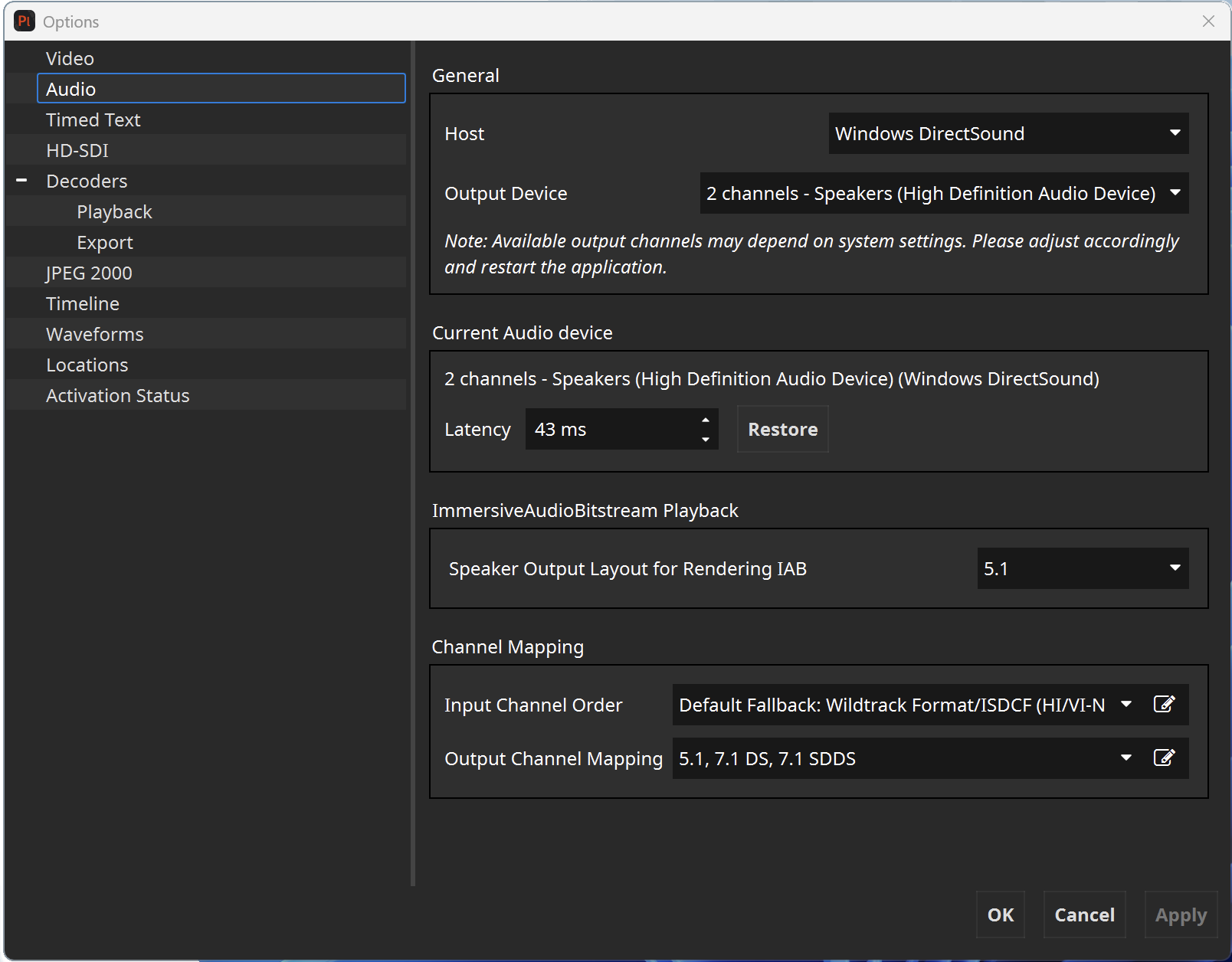
Latency: It is possible to specify a latency in milliseconds for each renderer. This latency will be taken into consideration when synchronizing audio and video frames. Changing the latency will take effect immediately, so it can be easily tweaked while simultaneously watching a test package. Except for HD-SDI output, the latency should normally be positive, i.e. video output will be slightly delayed to compensate for the latency introduced by the operating system’s audio processing pipeline.
Input Channel Order and Output Channel Mapping: Since easyDCP Player+ 3.5.0 it’s possible to configure the audio input channel order and output channel mapping via the graphical user interface. To do so select a preset from the existing list or click on the edit button next to “Input Channel Order” or “Output Channel Mapping” to define own presets. Please refer to chapter 10 for detailed information.
Multichannel Audio on Apple Systems: easyDCP Player+ does not support 5.1 Audio output using the optical audio ports usually found on Apple Computers. Instead, we recommend using the integrated HDMI port or an USB Sound Card.
Immersive Audio Bitstream Playback Starting from version 4.3.0 easyDCP Player+ supports Immersive Audio Bitstream. Speaker output layouts can be selected as follows:
IAB Output Format |
Speaker Layout |
|---|---|
2.0 Stereo |
L,R |
5.1 |
L,R,C,LFE,Ls,Rs |
6.1 |
L,R,C,LFE,Ls,Rs,Cs |
7.1 DS |
L,R,C,LFE,Lss,Rss,Lrs,Rrs |
7.1.4 |
L,R,C,LFE,Lrs,Rrs,Lss,Rss,Ltfs,Rtfs,Ltrs,Rtrs |
Each Speaker therein is defined as …
Abbreviation |
Full Type |
|---|---|
L |
Left |
R |
Right |
C |
Center |
Cs |
Center Surround |
Ls |
Left Surround |
Rs |
Right Surround |
LFE |
Low Frequency Effects (Subwoofer) |
Lss |
Left Side Surround |
Lrs |
Left Rear Surround |
Rss |
Right Side Surround |
Rrs |
Right Rear Surround |
Ltfs |
Left Top Front Surround |
Rtfs |
Right Top Front Surround |
Ltrs |
Left Top Rear Surround |
Rtrs |
Right Top Rear Surround |
Timed Text#
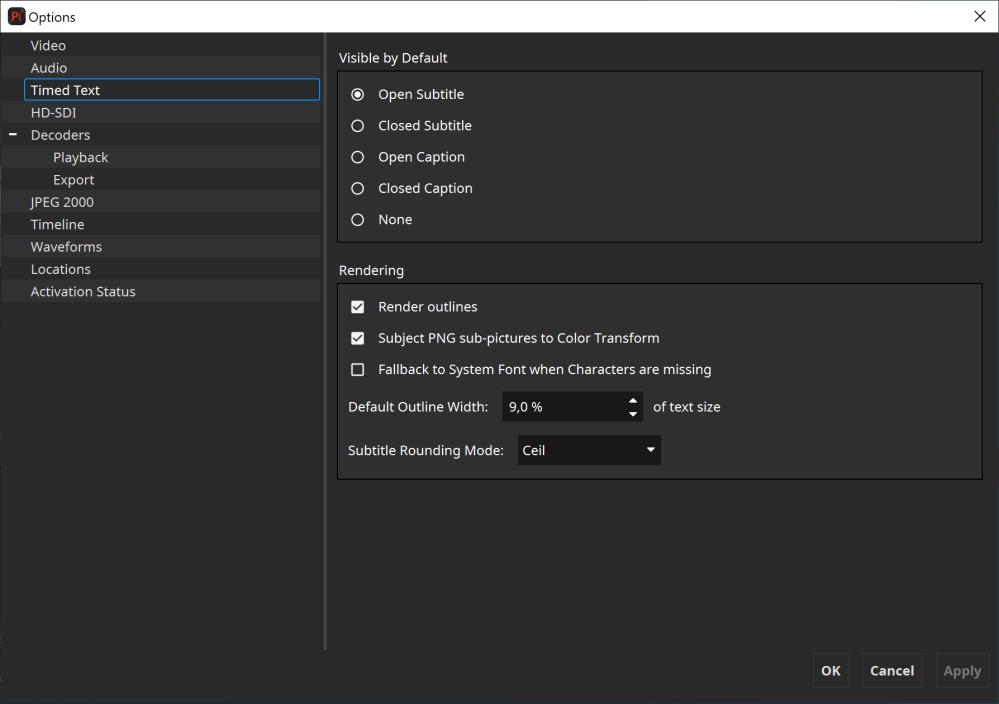
Default Visible Subtitles: A composition may have one or more timed-text tracks. Select here which track shall be rendered.
Subtitle Rendering: On some systems, subtitle outlines are not anti-aliased. This effect is noticeable when multisampling is not enabled. Whether or not multisampling is enabled can be seen in the easyDCP Player+ system info dialog (Press F10). On Windows, disabling “Allow 30-bit colors” and “Allow Quad-Buffering” might lead to multisampling becoming available. Alternatively, outlines can simply be ignored by disabling the option “Render outlines”.
Servers behave differently, when it comes to rendering PNG sub-images. Toggling the option “Subject PNG sub-pictures to Color Transform” specifies if sub-images should also be included in a color transform, i.e. XYZ to RGB, or not.
System Font Fallback: If characters are missing in the loaded font and this option is enabled, missing characters will be replaced with characters from a similar font.
Default Online Width: The outline thickness for timed text is not defined in the specifications. With this setting, the default outline thickness can be configured and will be applied to new Timed Text Tracks.
This setting only affects the way timed text is rendered in easyDCP Player+. Unless timed text is burnt into the images, this setting will not affect how a cinema server renders the outlines.
Timed Text Rounding Mode: The rounding mode influences in some cases at which exact frame index a subtitle appears or disappears.
This setting only affects the way timed text is rendered in easyDCP Player+. Unless timed text is burnt into the images, this setting will not affect how a cinema server renders the timed text.
Show Forced Display only: Displays only TTML-IMSC1 content elements where the computed value of tts:visibility is “visible”.
Show Grid borders: Displays a red line around all elements and corresponding boxes.
HD-SDI Play-out#
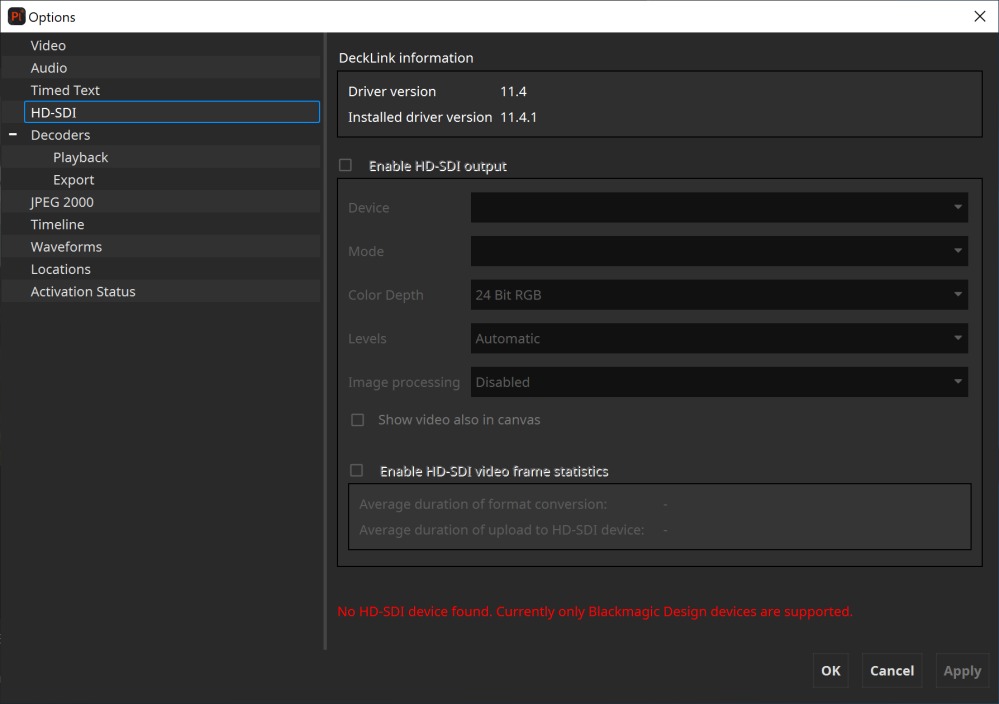
Enable HD-SDI output: Since version 2.0, easyDCP Player+ is capable of playing out HD-SDI with the Blackmagic Design UltraStudio, DeckLink and Intensity series. Both, PCIe-connected cards and Thunderbolt-connected external devices are supported.
Thunderbolt devices will only be detected, if they are attached at the time easyDCP Player+ is started. When enabling HD-SDI output within easyDCP Player+, the audio output device should be “ASIO (<name of HD-SDI device>)” on Windows and “CoreAudio (<name of HD-SDI device>)” on Mac OS X, so that audio and video signals emitted via HD-SDI are in sync. ASIO drivers for Windows are available for download at www.asio4all.com. The audio latency should normally be negative.
Advanced HD-SDI related settings can be configured in the Blackmagic Design Control Panel.
Mode: Select a HD-SDI output mode. The frame rate is required to be identical to that of the currently playing package. When playing back multiple DCPs with different frame rates back to back, the HD-SDI output is not automatically adjusted. If the resolution is smaller than the package’s resolution and “Enable subtitling, color-processing and scaling” is disabled, images will be cropped. On the other hand, if the resolution is larger and the processing option is disabled, images will be pillar-/letterboxed.
Color Depth: Sets the bits per component.
Levels: Select whether to apply a legal range conversion or not. “Automatic” will apply a conversion, if the output format requires it. Alternatively, you can select “Convert full-range to legal-range” to enforce the conversion or “No conversion” to always skip it.
Image Processing: If this option is set to Vulkan, images will be scaled to meet the currently set-up HD-SDI output resolution. Additionally, the currently selected color transform will be applied and subtitles will be rendered. This option has significant impact on the render performance. (Enable the statistics from “context menu->View->Show FPS stats”)
Show video also in canvas: Displaying video in the main window while HD-SDI output is active will impact the render performance and might lead to stuttering. Enable this option with care. (Enable the statistics from “context menu->View->Show FPS stats”)
Enable HD-SDI video frame statistics: This option should normally be disabled.
Decoders#
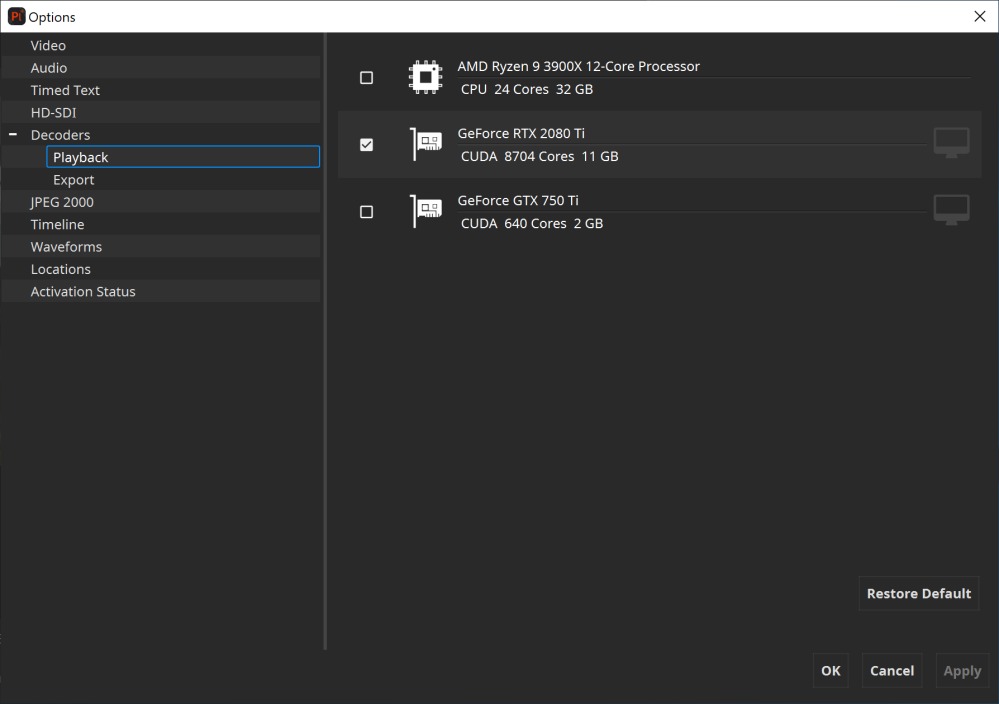
Since easyDCP Player+ 3.5.0 it’s possible to configure the devices, which should be used for playback and export, separately. All available devices will be listed under “Playback” and “Export”. Refer to chapter 3 for more details on the system requirements.
On most systems, easyDCP Player+ is able to automatically configure itself. For playback, it attempts to use only the secondary device’s GPUs for JPEG 2000 decompression and ignore the primary GPU as it will be used for rendering. For export, all available GPUs will be selected.
If no GPUs are available that support the NVIDIA® CUDA® technology, the CPU will be used for decoding automatically.
If you play back a video asset with the GPU-based codec, hit ‘s’ to display the performance statistics. The bottom line usually needs to read “GPU Decode (1x GPUs)” (unless the CUDA device has two cores like in the screenshot above. Then it should be “2x GPUs”). Do not enable a CUDA graphics card marked with “(connected to display)”
CUDA®-enabled decoders are only available in the Windows version.
JPEG 2000#
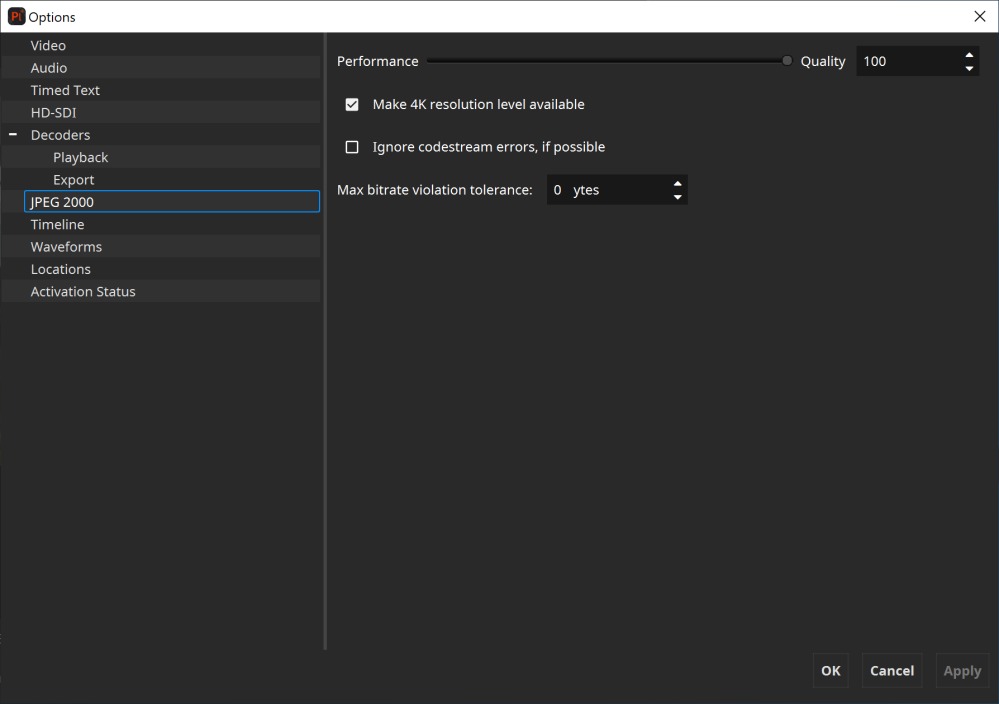
Performance vs. Quality trade-off: Since version 2.0, easyDCP Player+ is capable of trading some decoding precision for a better performance. Especially, when viewing DCPs (which have 12 bit per color) on a regular 24 bit monitor, some information from the JPEG 2000 codestream can safely be ignored without significantly impacting the resulting image quality.
The algorithm is designed in a way that the trade-off does not have to be re-configured for every package. At a certain position, code streams from a DCP that contain so many details that they fully utilized the maximum available data rate might already be truncated. When subsequently loading a package that has only a low data rate, because it does not contain many details, the precision would not be impacted, however, because it has a low-rate to begin with. This is desirable, because the performance requirements for decoding a low-bitrate package is much lower, anyway.
Make 4K resolution level available: 4K assets can be loaded in a way that only a maximum resolution of 2K is available, mainly to save memory and lower the performance requirements. Since many displays are not capable of rendering 4K anyway and 4K playback has much higher demands on memory and hardware, only the 2K part of a 4K JPEG 2000 codestream is evaluated. A 4K DCP can also be opened in full resolution by enabling this option. Smooth playback requires much more hardware resources.
Maximum bitrate violation tolerance: easyDCP Player+ checks if the bitrate limit is met. Some packages in the field slightly violate this limit by a few bytes, which does not seem to cause any playback issues on D-Cinema servers. To avoid warning messages in easyDCP Player+, the limit should be slightly raised. The default value is 0 bytes.
Timeline#
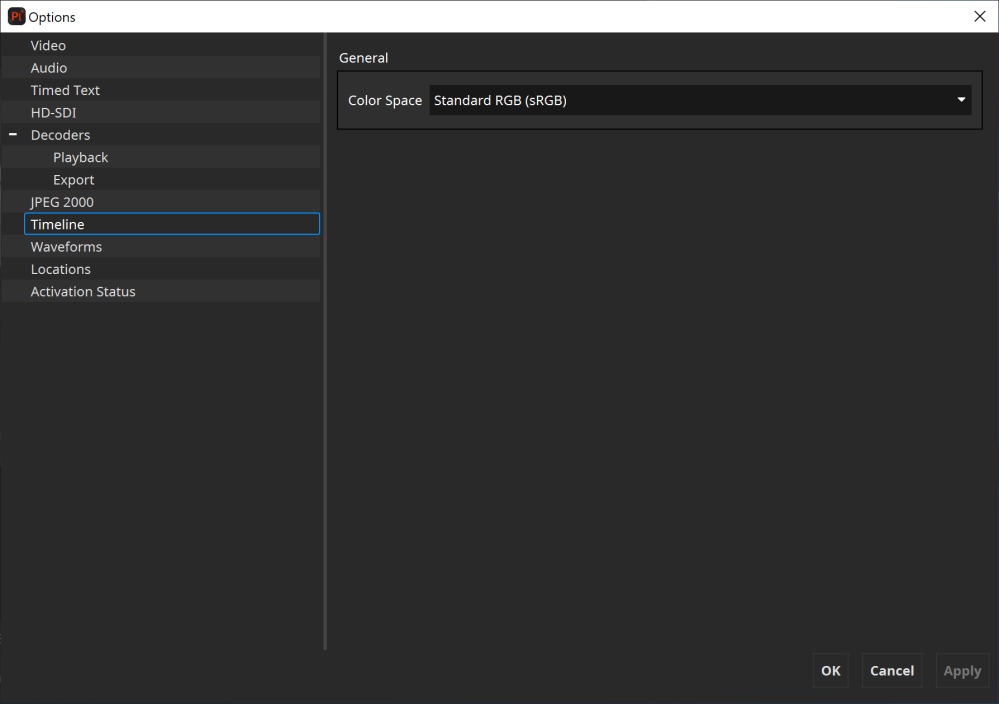
Color Space: Configures the target timeline color space which should be used for picture thumbnails. This option does not affect the selected target color space which is used for rendering in canvas.
Waveforms#
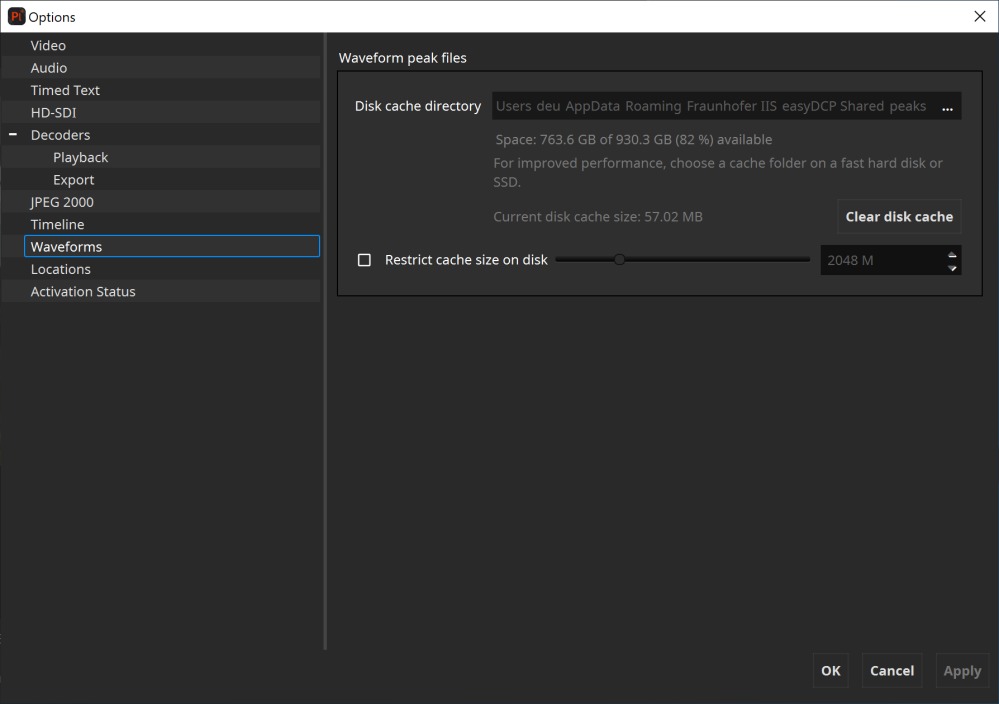
When (re-)opening a package the timeline displays the waveform of all contained audio tracks. To speed up the waveform generation of an already opened package, easyDCP Player+ caches previously generated waveforms within a repository. Within this options pane the cache directory can be set, cleared and restricted to a certain size on disk.
Locations#
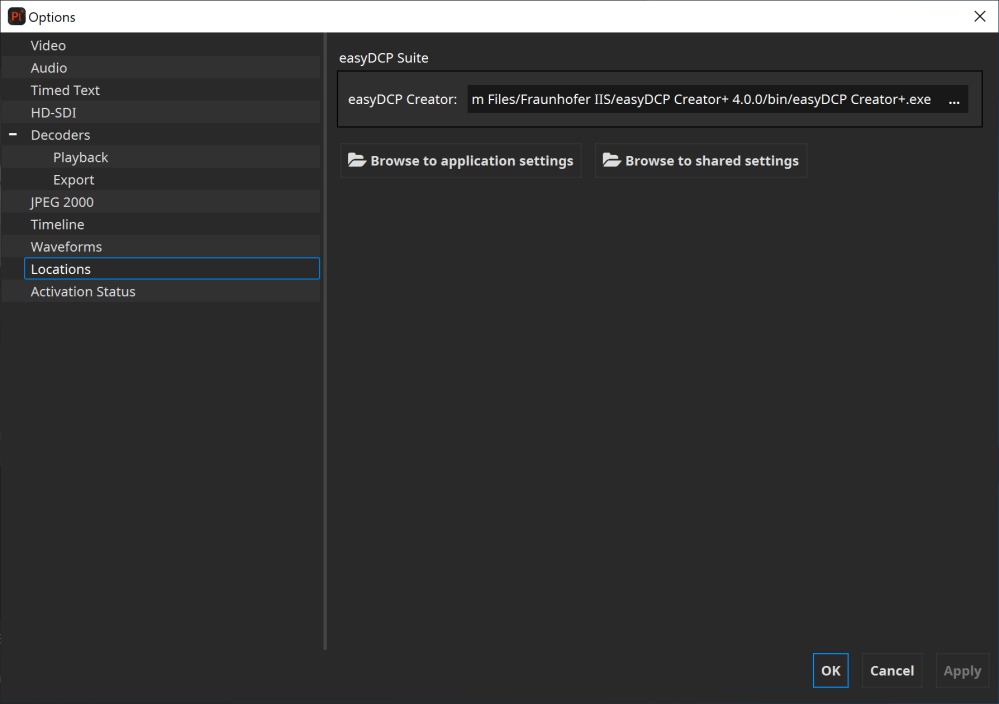
easyDCP Creator: Select which installed instance of easyDCP Creator should be used e.g. when an unwrapped DCP should be opened for further editing.
Browse to application settings: Opens the directory on disk where the application settings of easyDCP Player are stored.
Browse to shared settings: Opens the directory on disk where shared application settings of the easyDCP suite are stored.
Activation Status#
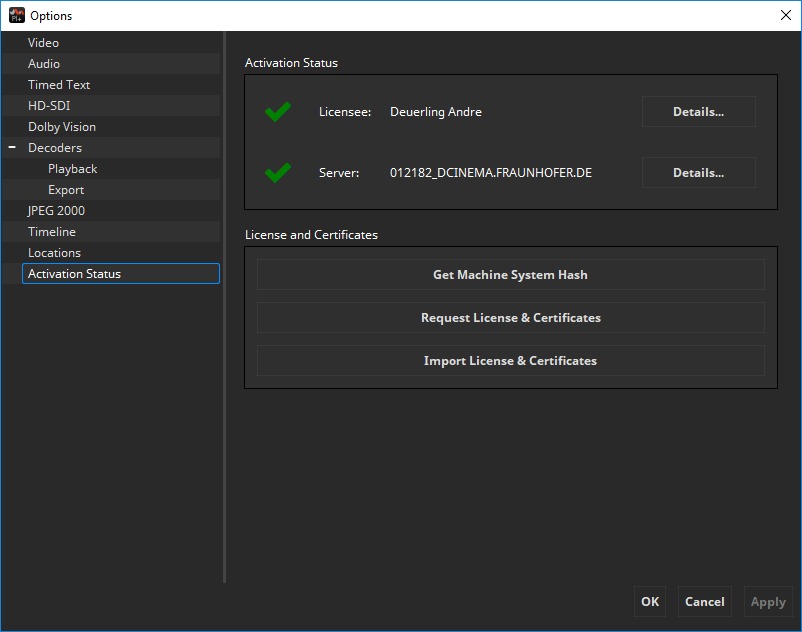
Since easyDCP Player+ 3.6.0 all licensing related information and options are part of this options dialog view. It’s possible to request or import a license & certificate set. Furthermore, information about the currently imported license and certificate set can be shown.