
KDM Signature#
A valid KDM needs to be digitally signed by a signer certificate (leaf). This signer certificate is signed by another authority and that by another, and so forth until the last certificate in the certificate chain signs itself (root). Altering an existing KDM will lead to its invalidation. By inspecting the certificate chain, the KDM’s recipients can decide if they trust the KDM or not.
In the demo version of easyDCP KDM Generator(+) an example signer certificate will be created at the first start up. Therefore users will be asked to specify a password. The signature setup dialog will be filled in with the auto-generated certificate automatically.
After licensing a commercial version of easyDCP KDM Generator(+) users may import the previously requested license and certificates by using the “Import License & Certificates” option in the help menu (see chapter 3.4). Doing so will automatically fill in the signature setup dialog with the imported signer certificate set. Of course, you may also use this dialog to set up another signature chain.
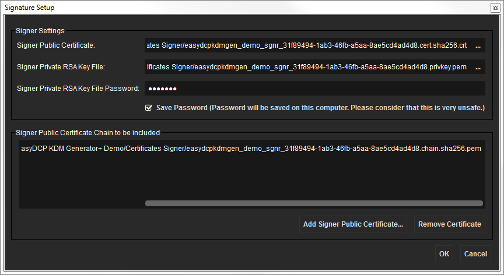
This dialog shows the currently used digital signature and certificate chain.
Signer Public Certificate
This field specifies the leaf certificate, which starts with “signer” and has a “crt” suffix. The signer certificate contains the signature’s public key.
Signer Private RSA Key File
This field specifies a file that contains the signature’s private key. The file is encrypted with a user password.
Signer Private RSA Key File Password
The password used to decrypt the signer’s Signer Private RSA Key File. The default signature’s user password is stored in a text file and read from there by default. When importing a custom chain, the user password may optionally also be stored in a text file. Note that this is potentially harmful as unauthorized access to the password may be possible and your digital signature may get compromised.
Signer Public Certificate Chain to be included
To complete the signer settings, the certificate chain’s intermediate and root certificates need to be imported. To add a certificate, click the button “Add Signer Public Certificate…”. To remove a certificate from the list, highlight it and click “Remove Certificate”.