
Installation#
The installation of the easyDCP KDM Generator(+) will only take a few minutes. You can download one single executable setup file (for Windows) or one single package file (for Mac) at the following address: http://www.easydcp.com/ Please check regularly to make sure you have the latest version.
To install easyDCP KDM Generator(+), make sure you have the required rights (i. e. admin rights).
Installation on Windows#
Under windows systems double click on the one executable setup file you received from us or downloaded at the easyDCP Homepage. The setup start window should appear:
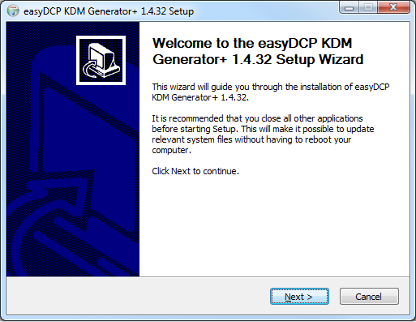
Press „Next >“ to continue installation or „Cancel“ to abort. After pressing „Next >“ the License Agreement window appears:
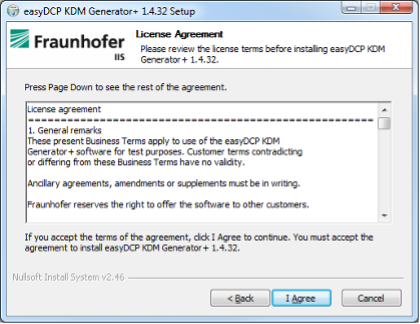
Please read the license agreement carefully. To scroll through the text use the slide bar on the right side. This window may differ from yours regarding which version of easyDCP KDM Generator you are installing. After pressing “I Agree” the installation location setup dialog appears:
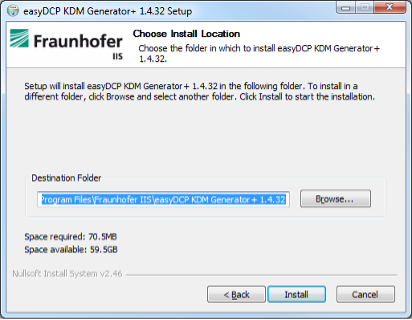
Setup will install easyDCP KDM Generator(+) in the “Destination Folder”. To install in a different folder, type the folder of your choice into the text field or click the “Browse” button to select a folder. Make sure you have the certain rights (i. e. admin rights) to write to that folder.
During installation some entries will be made to the windows registry of your operating system (e.g. for association of the file type extension for easyDCP Digest files *.dcpdig, uninstalling information, licensing information). These registry entries will be removed during uninstall (see 3.2).
After finishing the installation process, the following dialog appears:
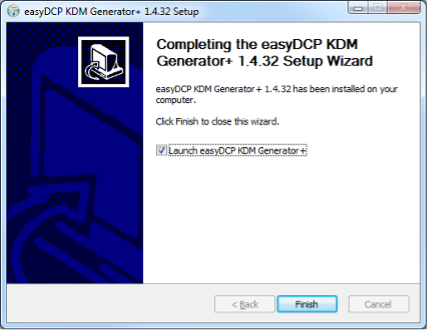
After successful installation process you can find shortcuts to easyDCP KDM Generator(+) in the Windows start menu and on the desktop.
Uninstallation on Windows#
In order to uninstall all easyDCP KDM Generator(+) components (including the windows registry entries) run “Uninstall easyDCP KDM Generator” in the start menu entry. Make sure you have sufficient rights (e.g. admin rights) to do such operations.
If however your easyDCP KDM Generator entry does not exist anymore in the Windows start menu, go to the folder where you installed easyDCP KDM Generator and run the executable “Uninstall easyDCP KDM Generator.exe” by double clicking.
After running the easyDCP KDM Generator Uninstaller, the following window should appear:
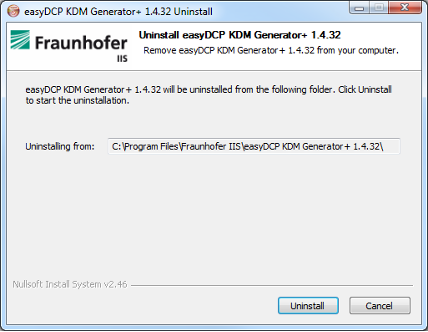
All files and directories will be deleted, except user files (e.g. licenses, certificates). Directories that include user files will not be removed. This makes sure that, when you update easyDCP KDM Generator(+) to a newer version, your license file and certificates will be kept.
After pressing „Uninstall“ the following window should appear:
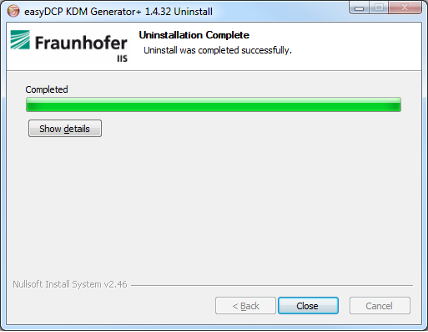
After a few seconds, the uninstallation of easyDCP KDM Generator(+) should be complete. There are no more files left except user files (e.g. certificates, licenses). The windows registry is cleaned up. The file type association with the extension *.dcpdig for easyDCP Digest files is removed.
Press the button „Show details“ to show details which files were deleted.
Demo Mode Restrictions#
In the demo version of easyDCP KDM Generator(+) you may only create KDMs with a valid period of two days or less. Furthermore the demo version provides automatically generated signer and server example certificates only.
License Activation and Certification#
By default, the commercial version of easyDCP KDM Generator(+) will start up in unlicensed mode. In this version a valid license is necessary. Otherwise the generation of KDM(s) will not work. To request your personal license and certificates select “Request License & Certificates” from the help menu. A dialog pops up and will ask to fill in some details. Enter the licensee’s name, the URL that shall be stated in the custom signer and server (easyDCP KDM Generator+ only) certificates and a password that is used to protect access to the certificates. If the computer is connected to the Internet, click the “submit” button. The default web-browser will open www.easydcp.com, where further instructions will guide you through the purchase process.
After the purchase, a link to the commercial installer as well as a zip file with the License and certificates will be available for download within your user account at www.easydcp.com. The zip file can be dragged & dropped into the commercial easyDCP KDM Generator installation to unlock it.
Software Upgrade#
To upgrade easyDCP KDM Generator log into your user account at www.easydcp.com.
Before installing a new version, it is recommended to uninstall your existing version of easyDCP KDM Generator(+). Make sure your license is valid for the new version by reviewing the license information (hit ‘F2’). If you need a new license for the new version, you may purchase it at www.easydcp.com.