
Generating KDMs#
In order to generate KDMs for a Digital Cinema Package (DCPs), a key input file is required. Both easyDCP KDM Generator and easyDCP KDM Generator+ can read a proprietary easyDCP Digest file. This file is created by easyDCP Creator+ whenever an encrypted DCP is generated. The digest file describes not only the DCP’s structure, but also contains all encryption keys.
Upon clicking the “Generate KDM!” button, easyDCP KDM Generator(+) will create KDMs for all server certificates in a single job. Using the full version of easyDCP Player+, you can test the whole procedure by issuing a KDM to your easyDCP Player+’s public server certificate. By selecting the own exported public server certificate, easyDCP KDM Generator+ can even issue a DKDM to itself. By the way, this procedure is the same when you want to issue a Distribution KDM (DKDM) for your client’s mastering station.
For advanced users it is also possible to create your own digest file as described in chapter Creating proper Digest Files
The Graphical User-Interface#
easyDCP KDM Generator(+) provides a graphical user interface which allows you to generate KDMs in a fast and convenient manner. All important settings can be applied with a few mouse clicks.
Settings Section#
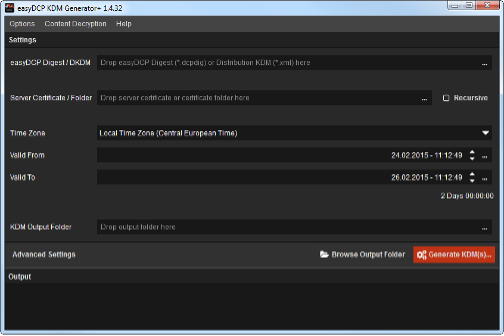
The “Settings” section is the place to edit job specific input and output files or folders. You can either drag & drop files or folders onto the various input fields, or use the “…”buttons to browse for files or folders.
After all settings have been applied, the KDM batch processing job can be started by hitting the “Generate KDM…” button. The status messages will be printet in the output section.
A job can be aborted by hitting the same button again. An error message will appear in the output to inform the user.
“Digest / Distribution KDM”
Use this field to load the easyDCP Digest file, which contains the encrypted DCP’s encryption keys. Note: A digest file contains information on all compositions of a DCP. However, a KDM only corresponds to a single composition. easyDCP KDM Generator(+) will by default create KDMs for all compositions that are listed in the digest and reference encrypted content.

The central exclusive feature of easyDCP KDM Generator+ is that it also allows to read a Distribution KDM (DKDM). The DKDM will be validated when the “Generate KDM” button is clicked. It can only be read if it was specifically issued to your easyDCP KDM Generator+ installation’s public server certificate that you previously exported with the “Export public server certificate” (F7) entry in the “Content Decryption” menu and sent to the DKDM’s issuer. Furthermore, the DKDMs expiration date and signature is checked.
Server Certificates Input Folder
In this field you can either point to a single public server certificate file or to a directory containing multiple public server certificate files.
By checking “Recursive” easyDCP KDM Generator(+) will include server certificates in all subfolders of a given directory also.
A public server certificate contains the server’s public key which was calculated from the server’s private key. The keys in a KDM will be encrypted with a single server’s public key. This ensures that only the targeted server (i.e. the recipient) can decrypt the keys in the KDM, because it is the only entity that knows and has access to the private key.
It is perfectly possible to point to your own public server certificate and generate a DKDM. Subsequently you can load the DKDM into the “Digest / Distribution KDM” field. You can also issue a KDM to your easyDCP Player+ installation’s public server certificate.
Usually, on the cinema server manufacturers’ ftp servers you can find both the public server certificate and the signature chain that was used to sign the certificate. If you decide to trust the certificate by examining the signature certificate chain, you only need the server certificate to create a KDM. It usually has either a *.pem or *.crt suffix. easyDCP KDM Generator(+) will accept either. Furthermore, there will be pairs of certificate and chain that state “mpeg”, “sha1” and “sha256”. Like with DCPs, there are SMPTE and InterOp KDMs. Almost all modern servers prefer SMPTE KDMs. It is recommended to distribute only SMPTE KDMs, which are only valid if the the “sha256” server certificate version was used.
Time Zone
By default, the time zone is set to the time zone configured in the operating system. The valid from- and valid to- times are interpreted as local times of the selected time zone. During the KDM generation process these times are convertet to the equivalent UTC times. For direct use of UTC time select UTC from Time Zone.
Valid From Time / Valid To Time
By default, the validity period will be initialized to two days. By clicking on the “…” button, a calendar dialog will open.
The KDM will only be valid between these two dates. Outside of this period it will not be possible to play back the corresponding encrypted DCP in a cinema. The entered dates and times are interpreted as local times according to the selected time zone.
KDM Output Folder
Specifies the directory where generated KDMs will be stored. By default, KDMs will be named “kdm_<content_title>@<server_cert_filename>_<counter>.kdm.xml”.
Advanced Settings#
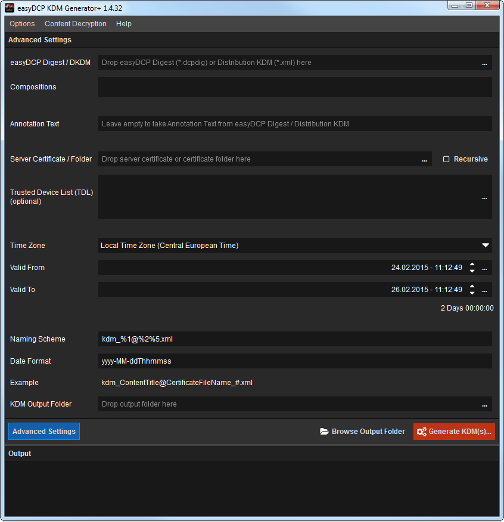
easyDCP KDM Generator offers a set of advanced options. To show or hide the advanced options click on “Advanced Settings” button.
Compositions
A list of all available compositions in the digest or DKDM. Only for selected compositions a KDM will be generated. By default all compositions are selected.
KDM Annotation Text
A KDM contains an annotation field that may contain useful information. By default the source composition’s annotation text is used.
Trusted Device List
A Trusted Device List (TDL) defines peripheral equipment (like projectors, sound systems, …) which are connected to the digital cinema server. Those devices may also have certificates for themselves in order to protect the DCP content (footage). To ensure playback add certificates of trusted devices to this list.
Naming Scheme
Naming scheme for the generated KDM(s), Valid place holders are: %1 Composition Content Title %2 File name of server certificate %3 UUID of the KDM %4 Date and/or Time (see Date Formate below) %5 Counter if KDM already exsists
Date Format
Date format used for the date place holder %4 in the naming scheme.
Output Section#
The output section shows a detailed description of the KDM creation process. It informs the user if all KDMs are generated successfully or if an error occurred and why. Furthermore it lists relevant properties of all server certificates.
To save the result of your process in a text file it is possible to select the content of the output window and copy & paste it to an editor. Otherwise it is not possible to edit the content of the output window.
Options Menu#
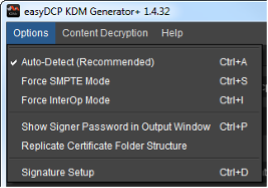
The option menu allows the user to set some additional options of the generated KDMs.
KDM Conformity
By default the conformity (i.e. SMPTE vs InterOp) is automatically detected. Under normal circumstances this setting should not have to be changed. If a targeted public server certificate employs the sha256 algorithm, the KDM will be generated in SMPTE mode, otherwise in InterOp mode.
This automatic selection can be overridden by either selecting “Force SMPTE mode” or “Force InterOp mode”. Note: The example signer certificates and any customized certificates obtained from Fraunhofer IIS are sha256 certificates. Therefore even an InterOp KDM will be signed with SMPTE-compliant sha256 signer certificates.
The InterOp mode provides a backward compatibility to obsolete digital cinema servers which use the former InterOp standard. It is not recommended to use this option for current productions.
KDM Signature Setup
See chapter KDM Signature
Other Options
“Replicate Certificate Folder Structure” specifies if the output folder structure shall be the same as the input directory subfolder structure. This option only has effect when combined with the “Recursive” server certificate input folder option. E.g. an input folder “ServerCerts” with a server certificate in a subfolder “ServerCertsCinema01cert.cert” and an output directory “KDM” will result in following output: “KDMCinema01kdm.xml”.
The “Show Signer Password in Output Window” option specifies, if the user password should be displayed with asterisks (*) or in plain-text in the output window. It is recommended to keep this option disabled.